Help overview/Organization and members
Users and permissions
Users are people who sign in to the administrative part of Levitio. Parents and children are not administrative users.
Users are people who sign in to the administrative part of Levitio and, according to their role, can read or edit data. Typically these are leaders, coaches, advisors, or other collaborators.
Parents and children are not administrative users — the parent and member portal is for them.
You can also manage users centrally in Organization > Users. Access granted at a higher level can, depending on the role, also include subordinate units.
Managers vs. Assistants
Users are divided into two groups: Managers and Assistants. While Managers have access to all information and can edit anything, for Assistants you can choose what they have access to.
Where to add users
There are three places where you can add users:
- Organization (e.g. a center / school / club…)
- Unit / club
- Patrol / group
If you add a new user to the organization, they automatically have access to all units and patrols that belong to the organization (but they may not receive notifications, or they may have a less detailed view for subordinate units).
When you add a new user to a unit, they only have access to it and the patrols that belong to it.
And if you add them to a patrol, they only have access to it.
Practical tip We recommend adding users to all levels where they actively work. If a unit leader is also a patrol leader, we recommend adding them (the invitation must go to the same email) to both the unit and the patrol.
This creates shortcuts (for faster access) or enables notifications, for example.
How to add a user
In Levitio, go to “Users” in the organization, unit, or patrol where you want to add a new user.
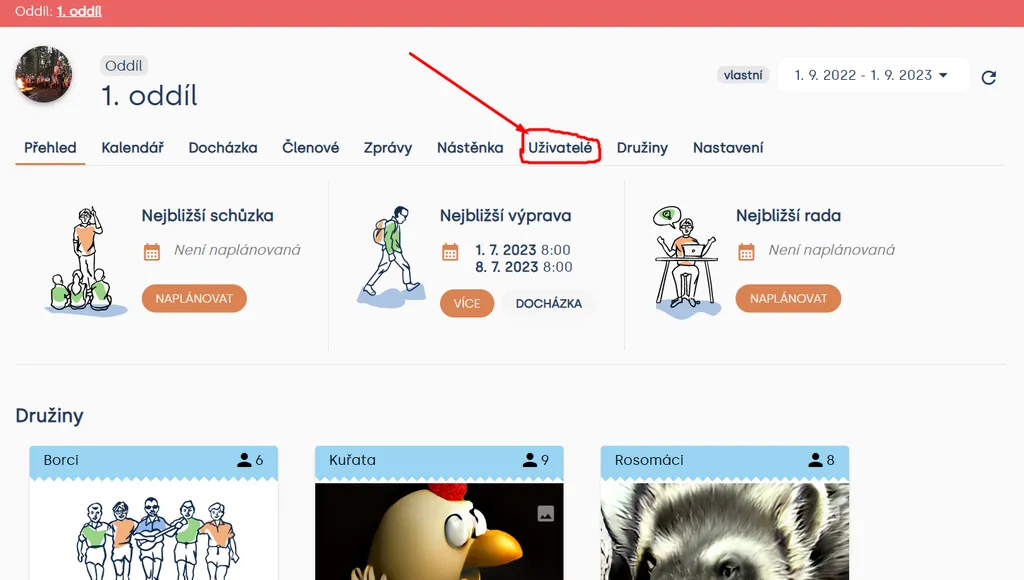
Unit > Users
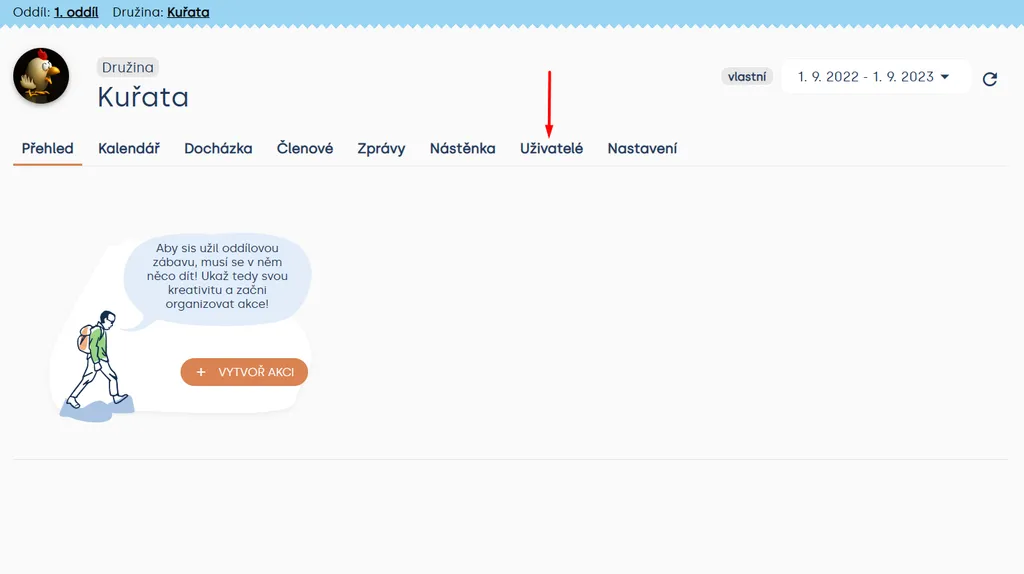
Unit > Patrol > Users
After the Users page opens, you will see:
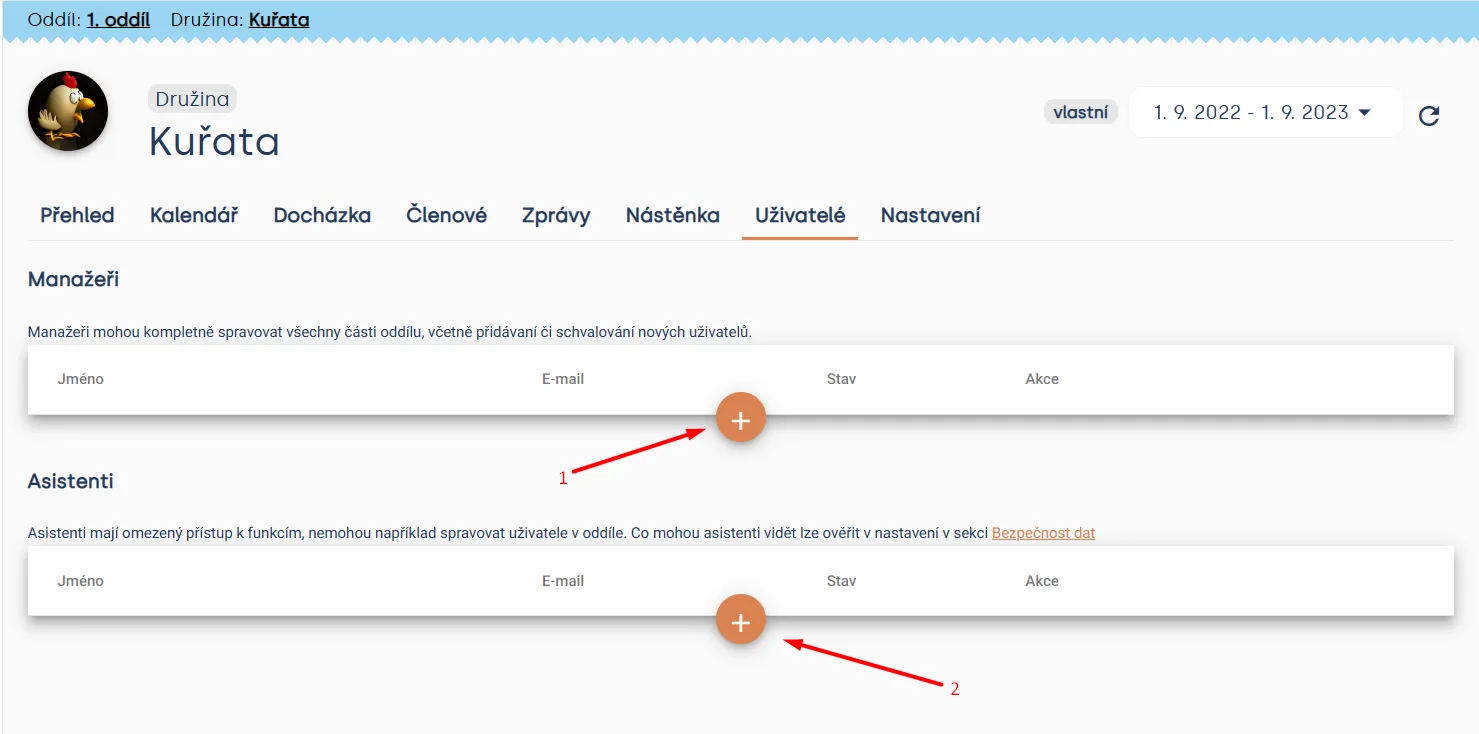
Unit > Patrol > Users
Clicking the PLUS (+) symbol will either open the option to add a Manager (arrow 1) or an Assistant (arrow 2). In both cases, proceed exactly the same way.
Unit > Patrol > Users
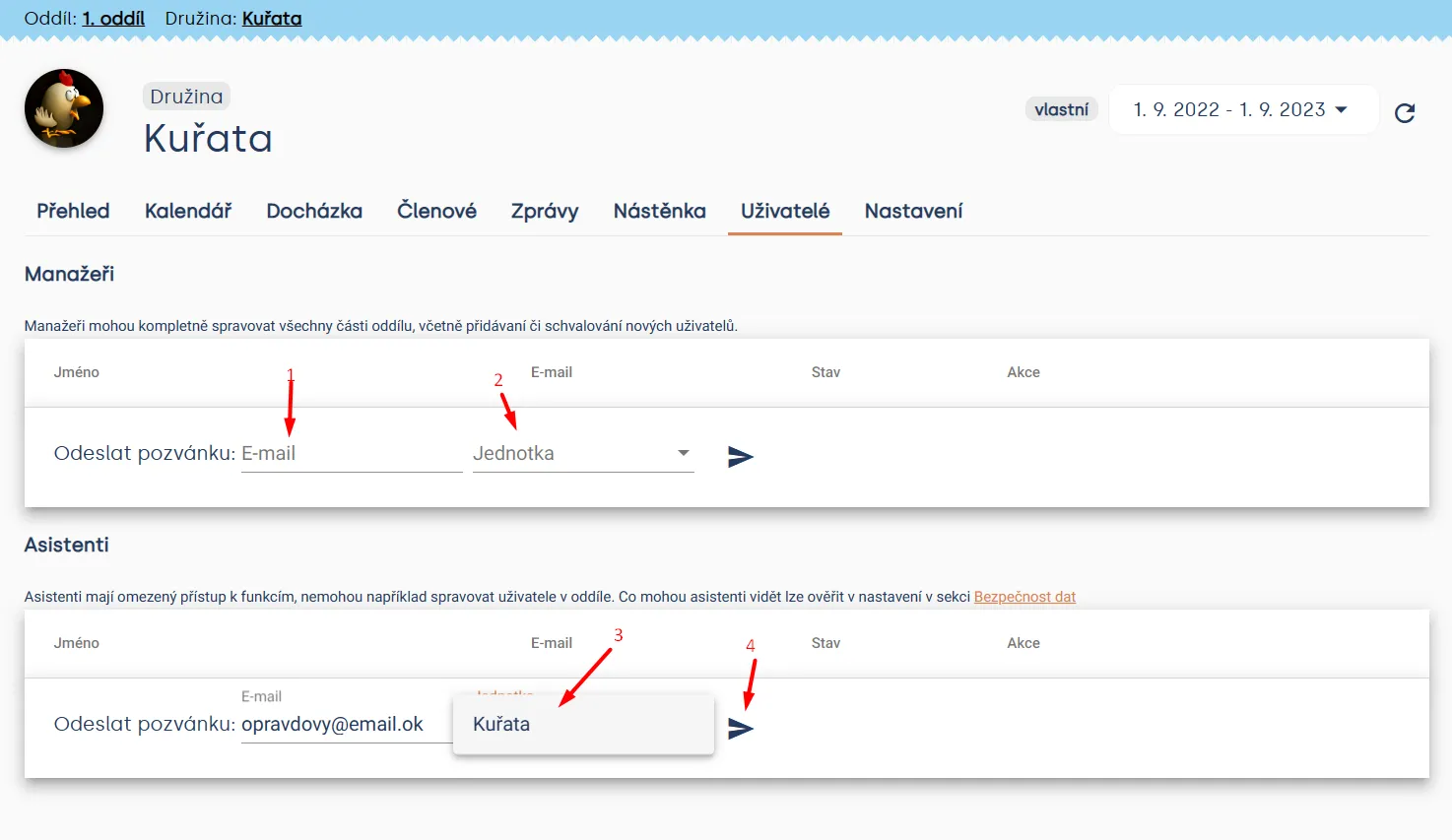
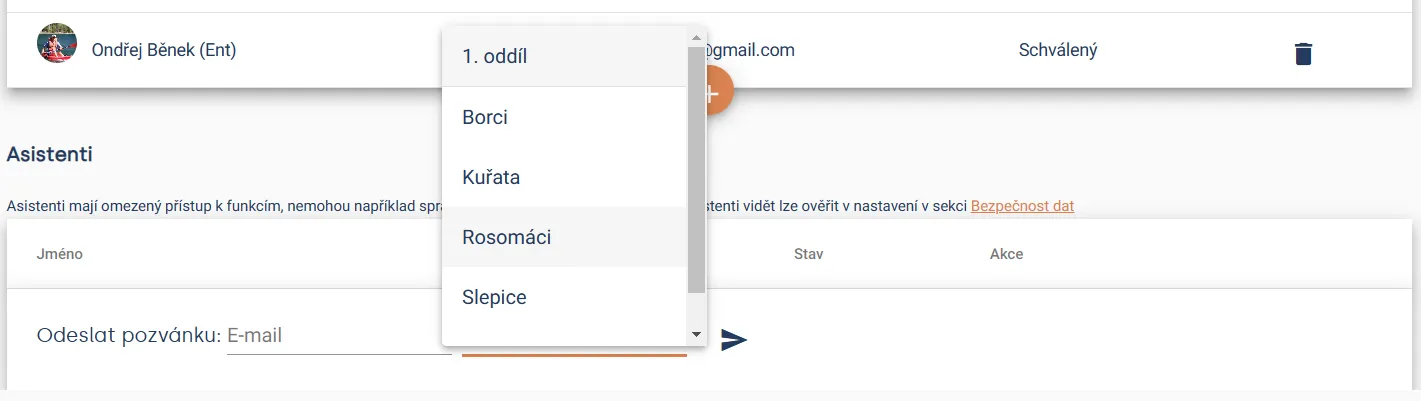
Fill in the email (arrow 1) and select the unit (arrows 2, 3) where you want to add the user. The image below shows what it looks like if you have multiple options to choose from. Once you have made your selection, click the icon (arrow 4) to send the invitation.
How to accept an invitation
The user will receive an email with an invitation to Levitio.
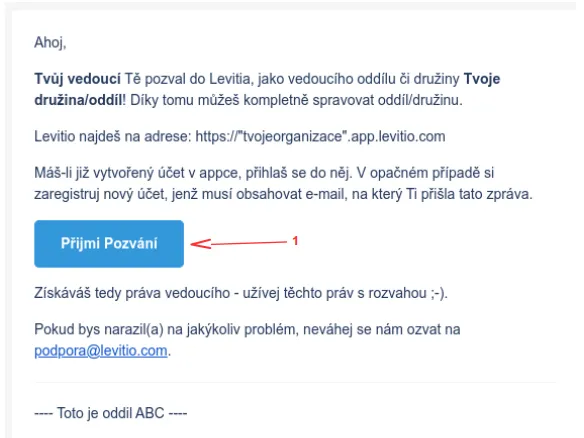
Image: Email invitation
After clicking button 1 “Accept invitation”, the login window opens,
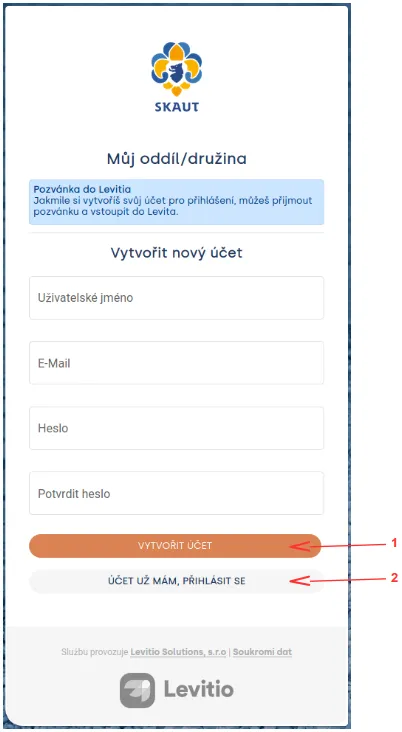
where you can choose between:
- creating a new user (a user account that will have access to the organization account),
- connecting an existing Levitio user to the organization account (e.g. if you have a role in multiple organizations, each using its own Levitio. In this case, you have the same username for all Levitio instances).
Practical tip We recommend having an experienced administrator / leader in your organization pass on basic Levitio experience to the new user. Levitio has many features and some can be used in multiple ways tailored to your organization.
User account and notification settings
Each user can configure their account (first name, last name, and contacts — these may be shown to parents, e.g. in an event invitation) and what type of notifications they want to receive.
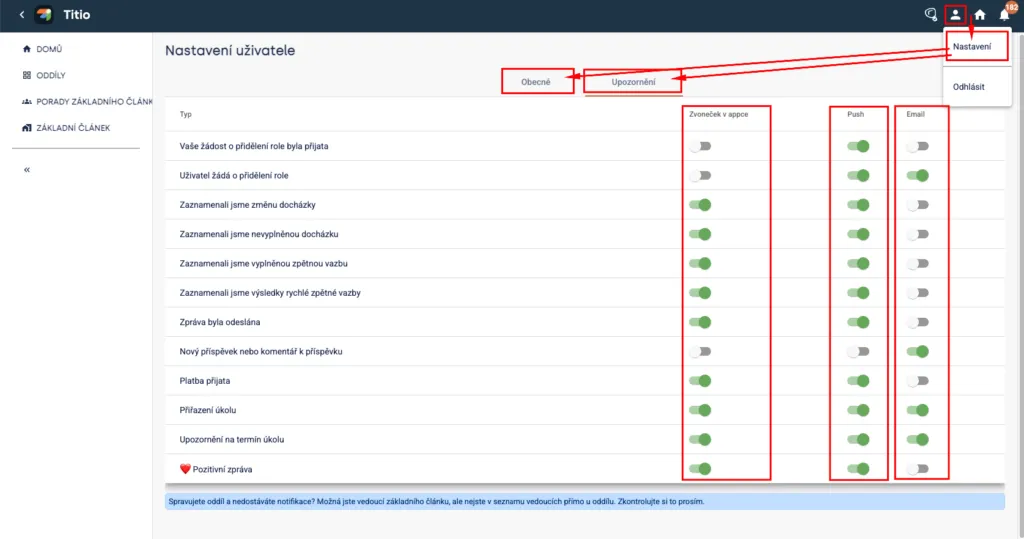
Notification types (alerts):
- 🔔 Bell in the app – an orange bubble with the number of unread notifications appears on the bell in the top right. You can click to see details.
- 📲 Push – if you have the app installed on your phone, you will receive classic push notifications directly on your phone.
- 📧 Email – notifications will be sent by email. We recommend this only for important / critical ones.
Related articles
Organization and members
Organization
The organization is the top level of a Levitio account. You can handle many things in one place for the whole organization.
Organization and members
Structure
Levitio uses several levels so it can match how your organization is actually organized.
Organization and members
Member records
You can manage members in a specific unit / club and also in summary at the organization level.
Organization and members
Unit / club
A unit or club is the main working unit under the organization. You create a new unit from the organization overview.
Organization and members
Unit / club settings
In Settings you edit the basic details of a specific unit / club. This is also where the bank account for Levitio Pay is set.