Help overview/Organization and members
Badges
With badges you can record merit badges, trails, courses, qualifications, or your own internal awards for members.
With badges you can record, for example, merit badges, trails, courses, qualifications, or your own internal awards for members.
Levitio offers some preset sets, and depending on your permissions you can also create your own badges for your unit.
Preset badges
In Levitio you will find preset badges for merit badges, courses, or birch leaves, for example. Preset badges mostly relate to scout organizations, so if you need badges specifically for your organization, you can set up your own badges or courses as you wish.
Unit > Settings > Badges
Badge settings
In the unit, go to “Settings” and then to the “Badges” tab. Here you can configure badges at the unit level. Add a new badge by clicking the green +New badge button.
Unit > Settings > Badges
In the table, fill in the badge name, description, tag, and category and click the “Create” button.
Unit > Settings > Badges > +New badge
After creation, the badge will appear in the list of unit badges.
Unit > Settings > Badges
If you have images/patches or other insignia for unit badges, you can easily add them. Click on an already created badge. Click the empty image field and insert an image from your computer. After finishing edits, click the “Save” button.
Unit > Settings > Badges > Unit badges
The badge will then be displayed with the selected image.
Unit > Settings > Badges
Awarding a badge
In the Unit > Members tab, find the member you want to award a badge to and open their detailed profile. Scroll down the page to the “Badges” section. Here you can see all badges the member has already been awarded.
Unit > Members > Unit member > Badges
Click the “Assign badge” button and select the badge you want to assign from the list of all existing badges. Select a badge by clicking on it.
Unit > Members > Unit member > Badges
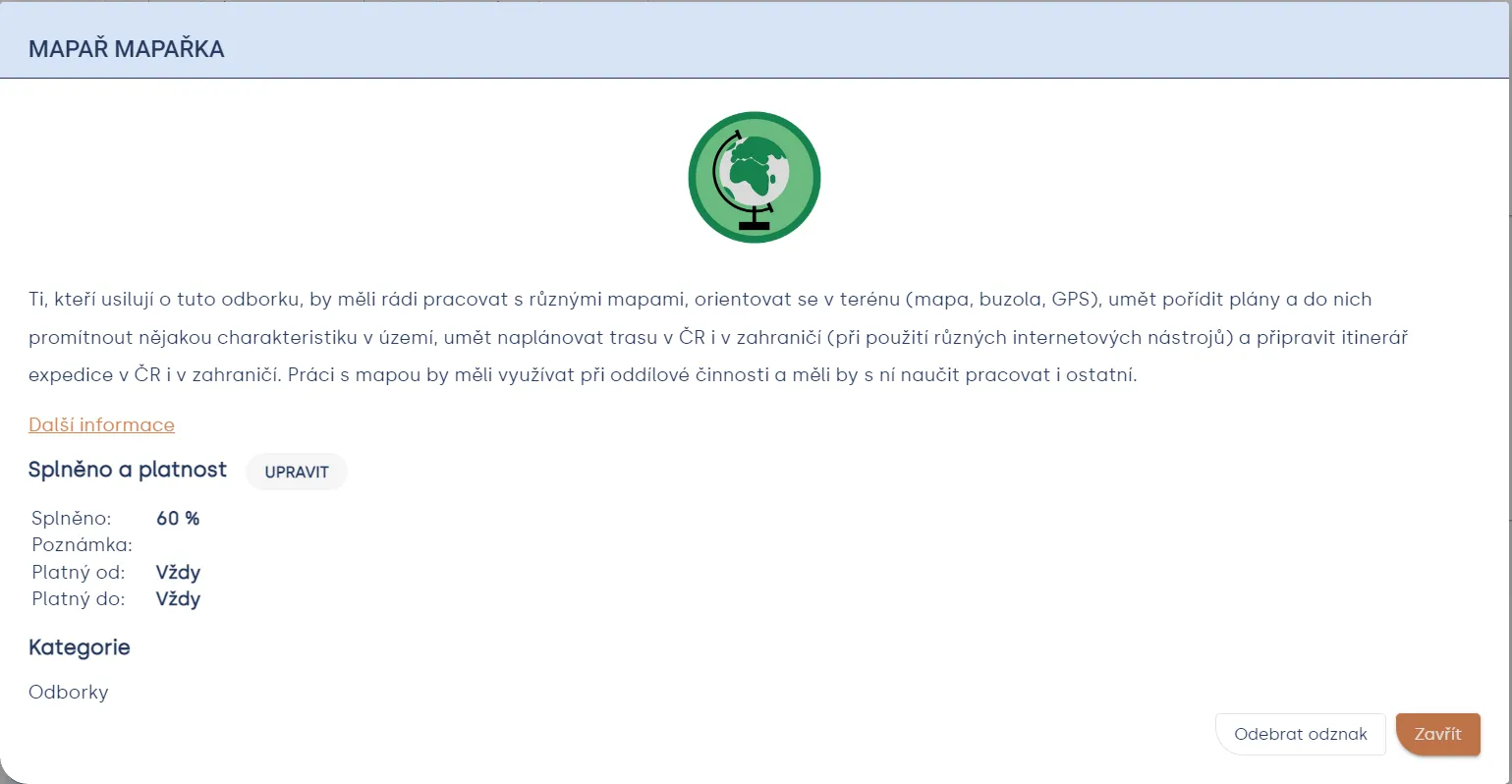
If your member has not yet earned the badge but is working on it, you can fill in completion percentage and add a note. For badges that have validity, you can fill in from when and until when the badge is valid.
Unit > Members > Unit member > Badges
After awarding, you can continuously update the badge and adjust completion percentage. Do this by opening the badge and clicking the “Edit” button.
Unit > Members > Unit member > Badges
Related articles
Organization and members
Organization
The organization is the top level of a Levitio account. You can handle many things in one place for the whole organization.
Organization and members
Structure
Levitio uses several levels so it can match how your organization is actually organized.
Organization and members
Member records
You can manage members in a specific unit / club and also in summary at the organization level.
Organization and members
Users and permissions
Users are people who sign in to the administrative part of Levitio. Parents and children are not administrative users.
Organization and members
Unit / club
A unit or club is the main working unit under the organization. You create a new unit from the organization overview.