Help overview/Organization and members
Task tracker
The task tracker helps divide work in the team. You can use tasks in the unit and on specific events.
The task tracker helps divide work in the team and track who is responsible for what. You can use it, for example, when preparing a camp, planning the year, maintaining the clubhouse, or organizing a larger event.
According to the current interface, you can use tasks in the unit and on specific events.
Unit > Tasks or Unit > event > tasks
Tasks give you a clear overview using boards, columns, and cards of who is doing what and what needs to be done. It helps you keep tasks organized and also makes collaboration with others easier.
Boards
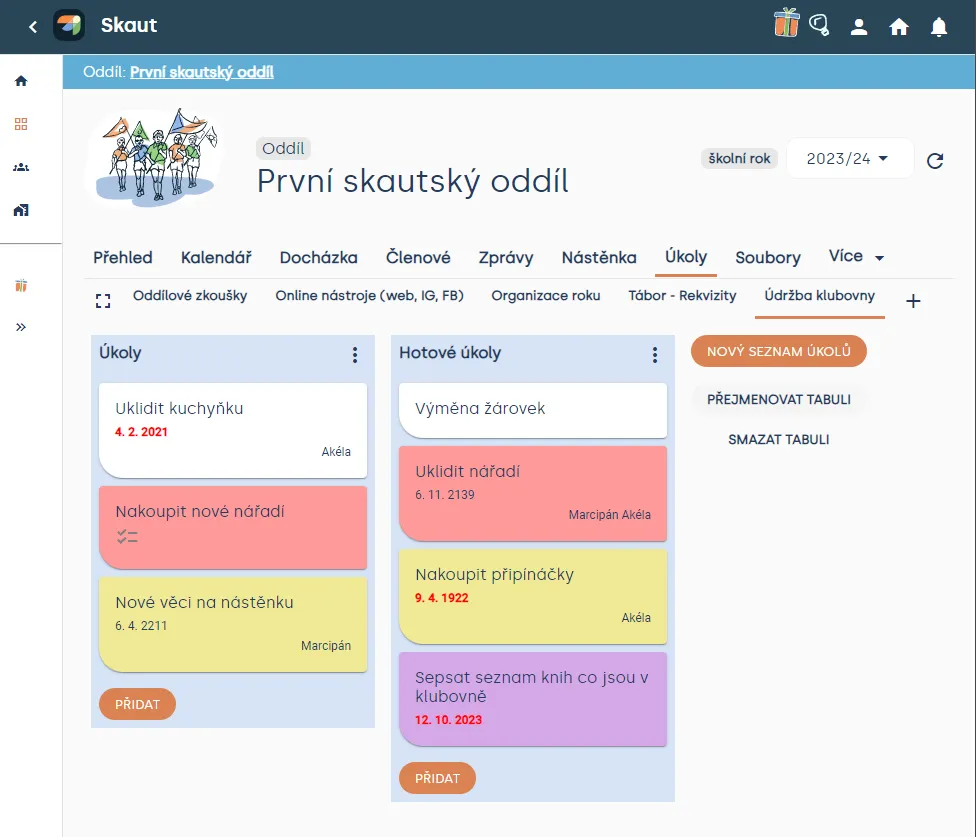
A board is a place to track information – often intended for large projects such as camps or clubhouse maintenance, for example. A board is the basic element of tasks, where you can organize tasks into lists – and above all collaborate with others.
Creating a board
Create your first board by clicking “Create task tracker” and then simply name the board. The minimum number of characters for a board name is 3 and the maximum is 100. Then click “Save”. Your first task board in the unit will be created.
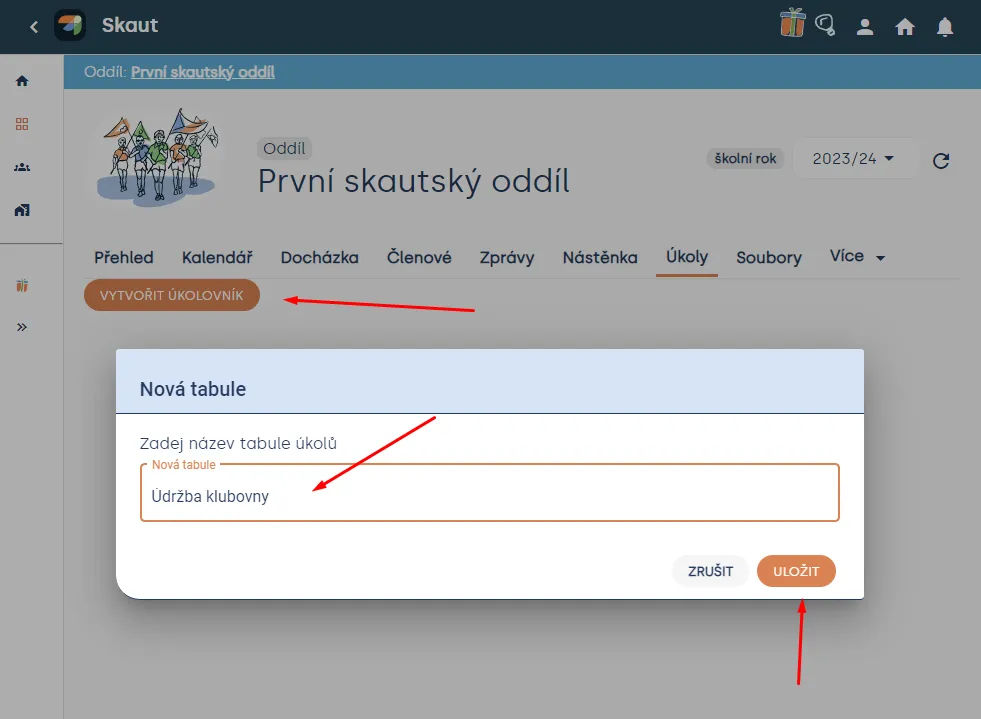
Create additional boards by clicking “+” and naming the new board (minimum 3 characters, maximum 100) and then clicking save. Boards are sorted from newest (left) to oldest (rightmost).
Working with task trackers – editing columns
For events, you don’t need to create a board, because for events you always work with only one board.
Task lists – columns
Task lists are used to organize tasks – or information – in different phases. Task lists can be used to create a task completion flow, where cards move through individual process steps from start to finish, or simply to store and track ideas and information. The number of task lists you can add to a board is limited to 100 columns, but you can arrange them however you want.
New task list – creating a column
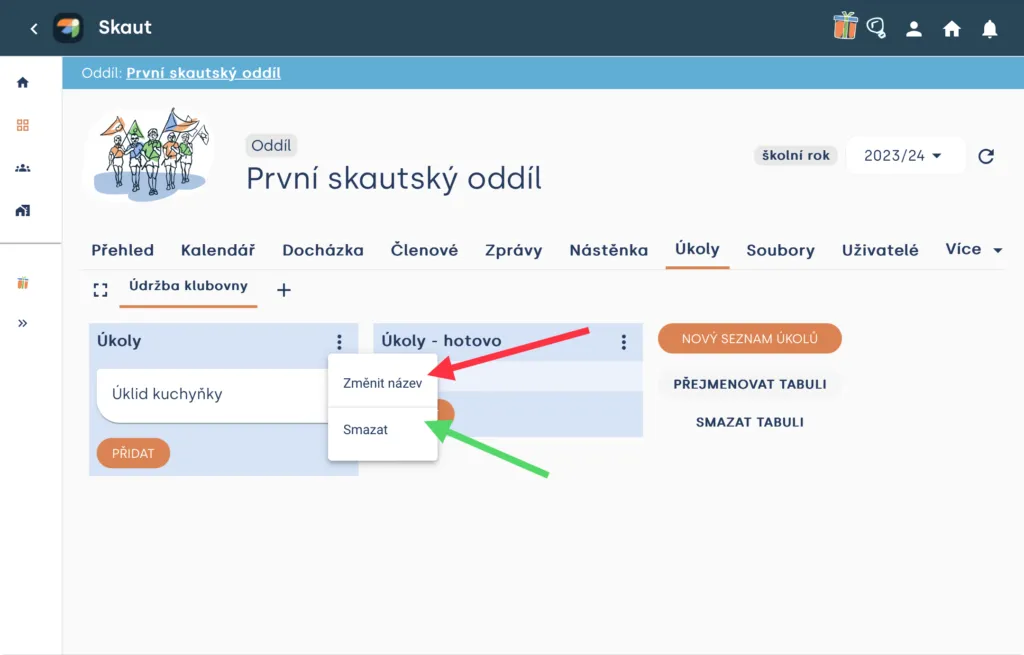
If you have created a board, you can start creating task lists. Create task lists simply by clicking “Add new task list”. Then name the task list and click “Save”. Remember that the minimum number of characters for a task list name is 3 and the maximum is 100.
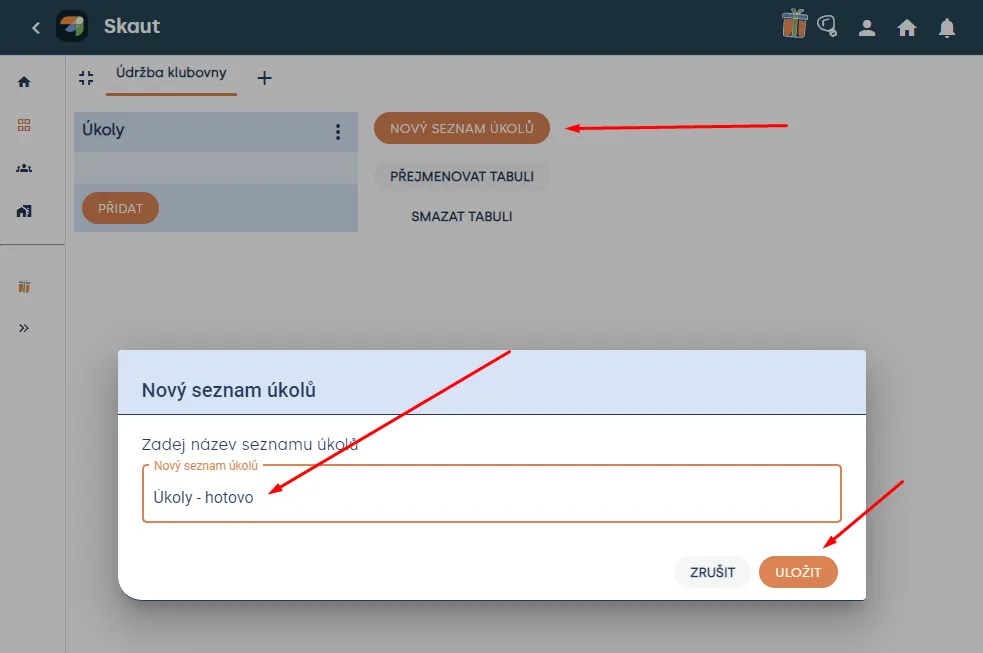
Tip When you create a new board, a first task list named “tasks” is also created automatically. Feel free to delete or rename it as you like.
If you click the three dots “⋮” next to a task list – column, you can rename or delete it.
Tasks – task cards
The smallest but most detailed unit on a board is a task. Tasks can represent individual ideas or information. A task can be absolutely anything, for example writing a blog post, or something you need to remember, such as unit rules regarding work with adults.
New task – creating a card
Create a new task easily. Simply click the “Add” button under any task list and name it, for example “Clean the kitchen” or “Write a blog post”.
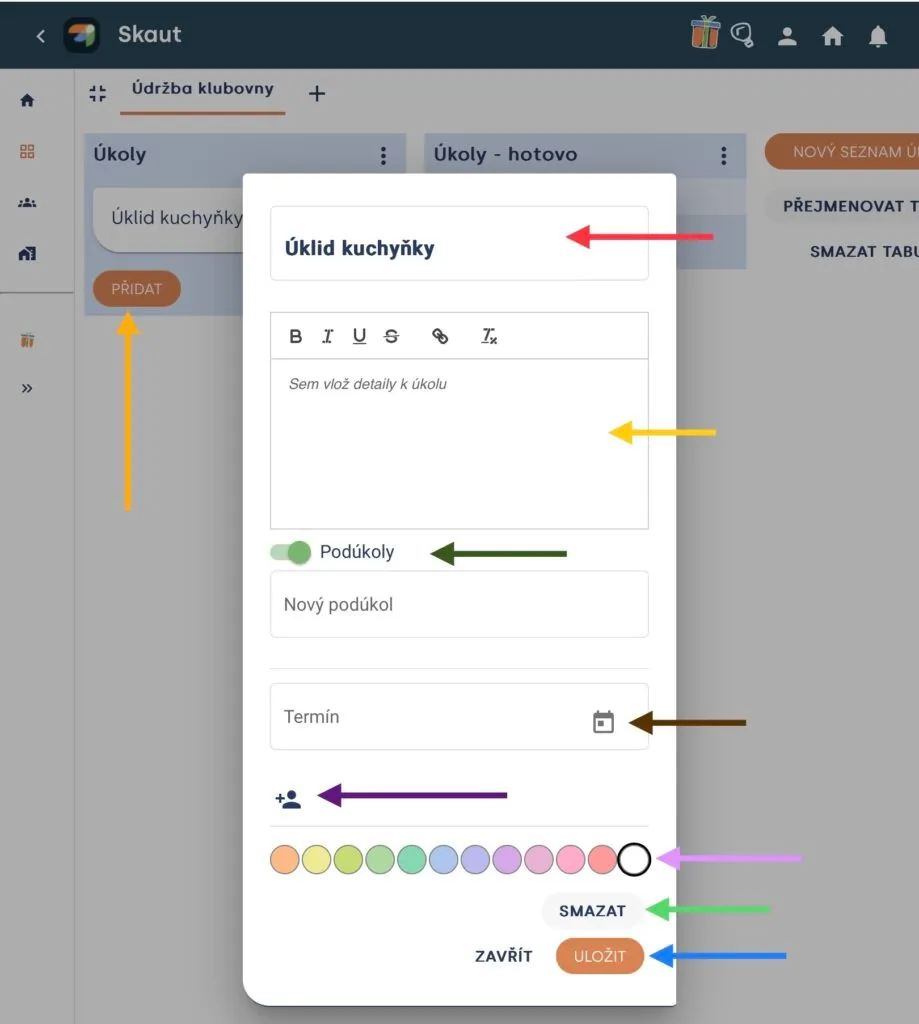
You can click on individual tasks and customize them to contain various useful information.
- You can rename them (red arrow)
- Write a description for the task (green arrow) – not intended for inserting images
- You can enable subtasks – this is a checklist where you can check off completion of different parts of the task. For example, when cleaning the kitchen, you might list: wash the sink, organize cutlery, etc. (green arrow)
- Set a task due date – if the date passes, the date turns red (brown arrow)
- Add a user to the task (purple arrow)
- Set the task color (pink arrow)
- Delete the task (bright green arrow)
- Save changes to the task – every time you change something in a task you must save it, otherwise changes won’t be saved (blue arrow)
By dragging tasks between task lists, you illustrate work progress. The number of tasks you can add to one list is limited to 150.
Heads up! If the time to complete a task is less than three days, an email notification will not be sent.
Related articles
Organization and members
Organization
The organization is the top level of a Levitio account. You can handle many things in one place for the whole organization.
Organization and members
Structure
Levitio uses several levels so it can match how your organization is actually organized.
Organization and members
Member records
You can manage members in a specific unit / club and also in summary at the organization level.
Organization and members
Users and permissions
Users are people who sign in to the administrative part of Levitio. Parents and children are not administrative users.
Organization and members
Unit / club
A unit or club is the main working unit under the organization. You create a new unit from the organization overview.