Help overview/For parents
How a parent pays with Levitio Pay
If the unit / club uses Levitio Pay, the parent receives a payment request and completes the payment in the parent and member portal — without registration.
If the unit / club uses Levitio Pay, the parent receives a payment request and completes the payment in the parent and member portal.
The parent does not need to register for the portal — they open it through their personal link.
🔗 More information for parents: Levitio for parents 🔗 For leaders: Levitio Pay: payments
Payments are divided into general payments (not assigned to a specific event, e.g. a trip or camp) and event payments (assigned to an event and linked to attendance and event sign-up).
A) General payment (e.g. for registration)
1) Payment request
The leader enters the payment into the system, assigns which members should pay, and sends a payment request. The leader can also set a payment deadline and manually change the amount for different members (e.g. sibling discounts).
The parent clicks “Pay” to open the parent and member portal.
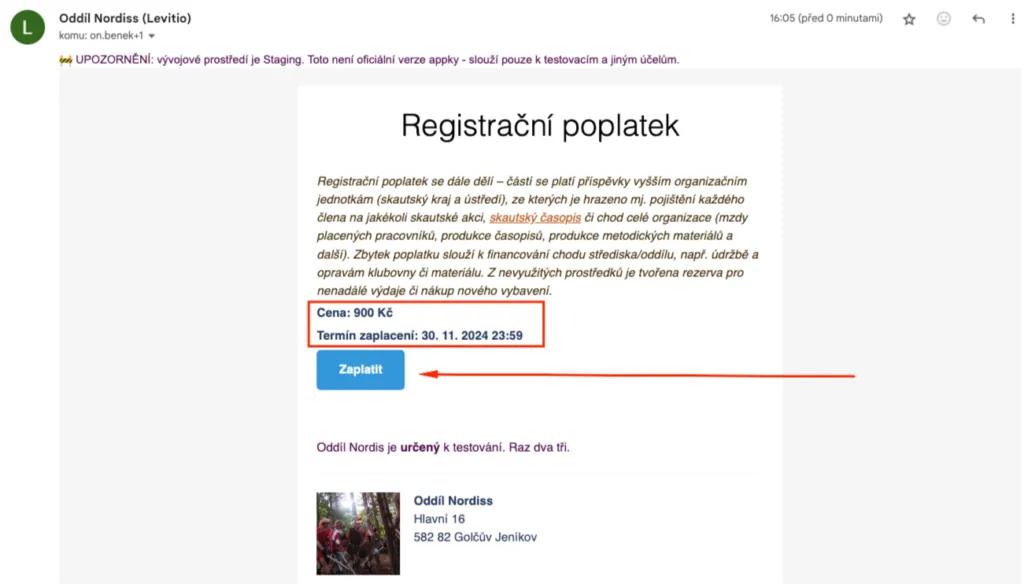
2) Payment information and filling in details
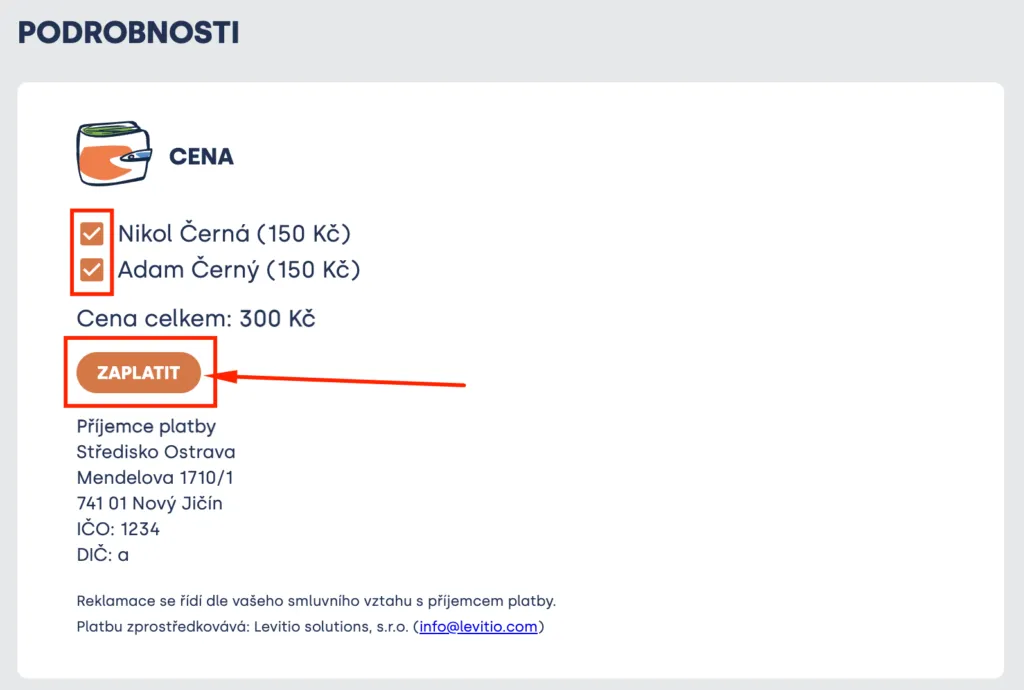
Members and parents see all current payment information in the portal and can pay for member(s). If multiple members (siblings) are assigned to the parent, they can specify for whom they want to pay (for just one, for all, etc.).
Tip In some families, parents have divided who pays for which child; in divorced families this is common practice. Levitio enables this.
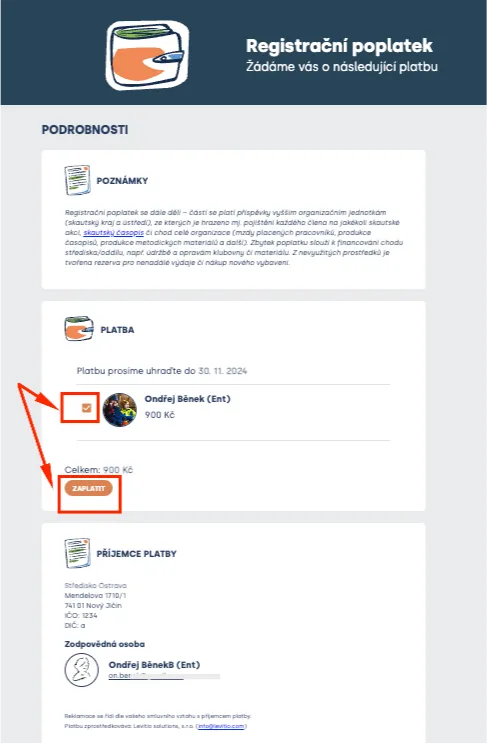
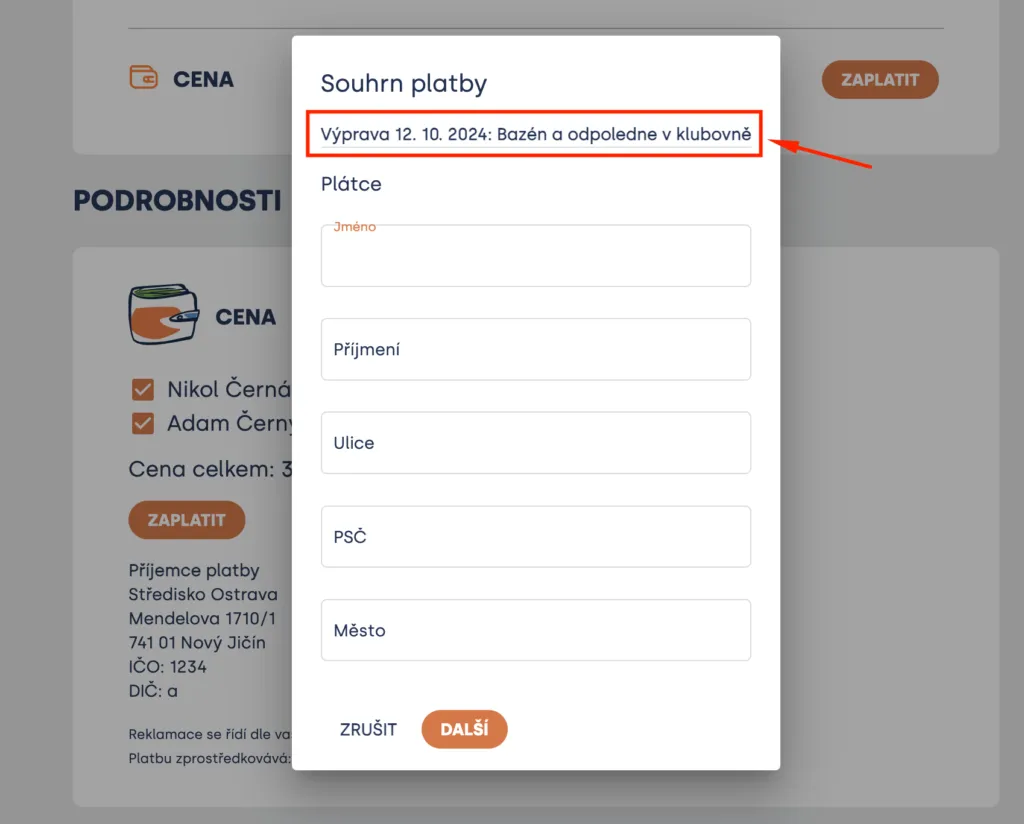
By checking the box next to member(s) and clicking “Pay”, a form opens where payer details need to be filled in.
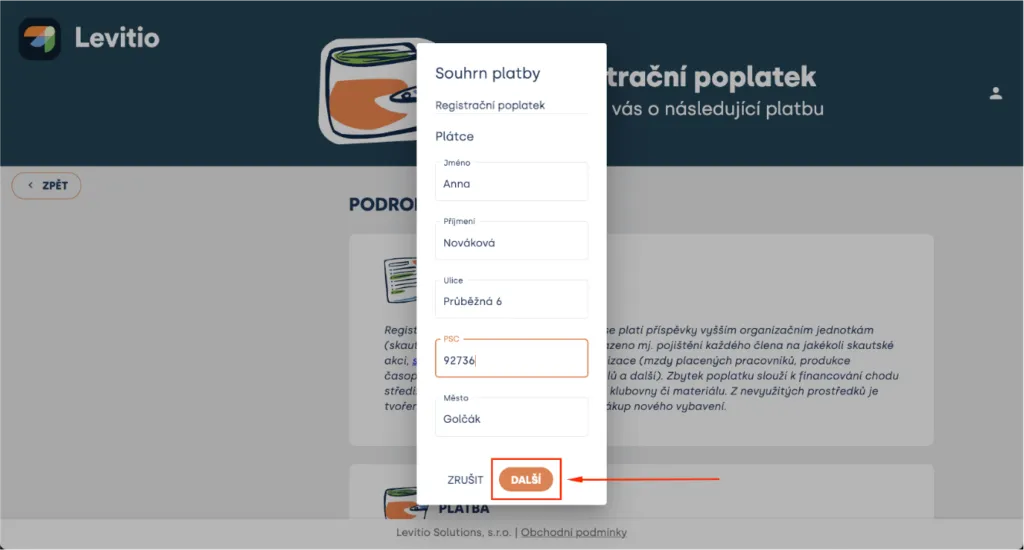
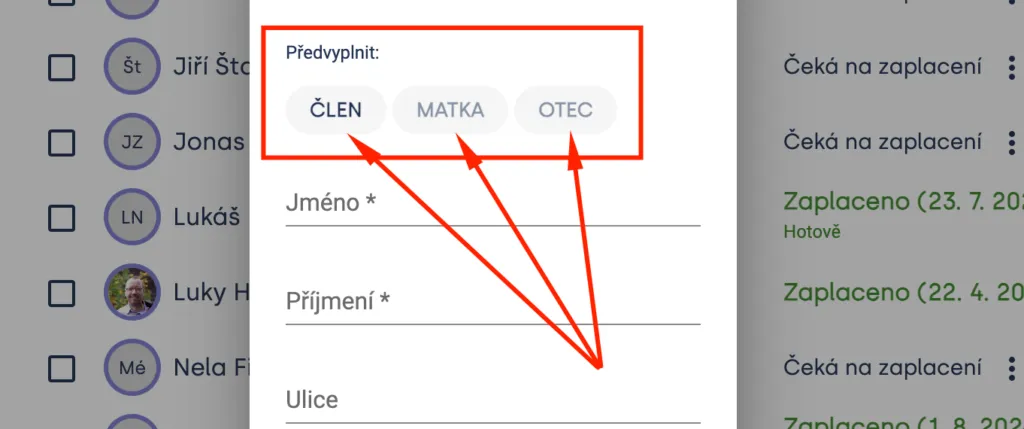
If the unit has parent contact details filled in, Levitio offers to pre-fill them for the payer here:
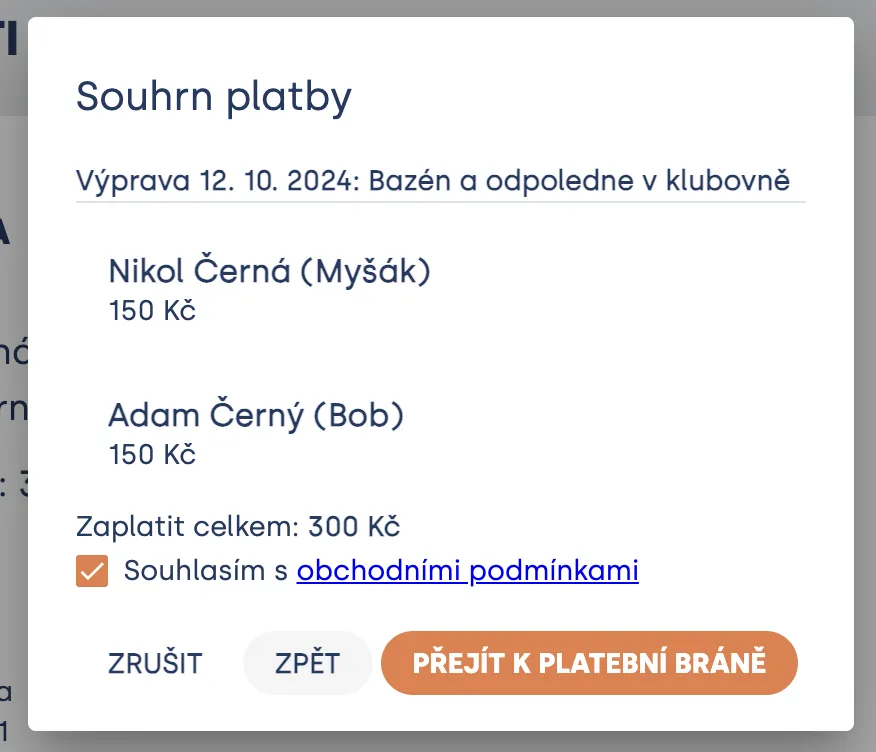
Then simply confirm the payment summary and agree to Levitio’s terms and conditions (Levitio only mediates the payment; the recipient is the organization / unit for which the specific payment is collected). By clicking “Proceed to payment gateway”, Levitio initiates payment with the integrated Comgate payment gateway, a verified Czech solution used by many e-shops, for example.
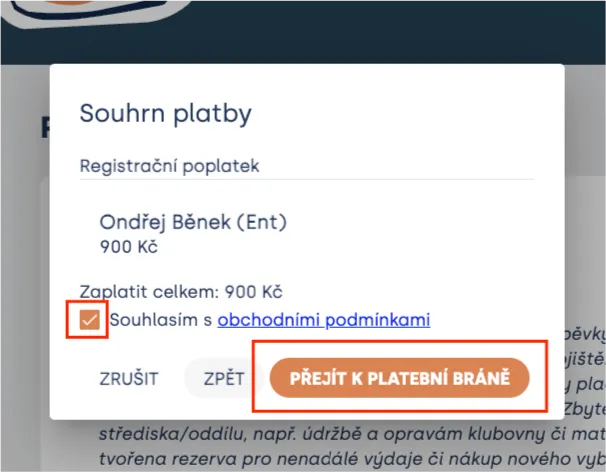
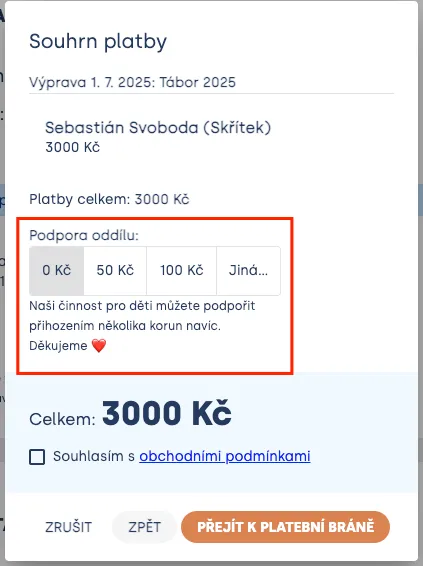
If the unit chose Payment type “Regular with donation option”, the parent can increase the payment at this step at their discretion. 🔗 More information in Fundraising.
3) Payment and downloading confirmation
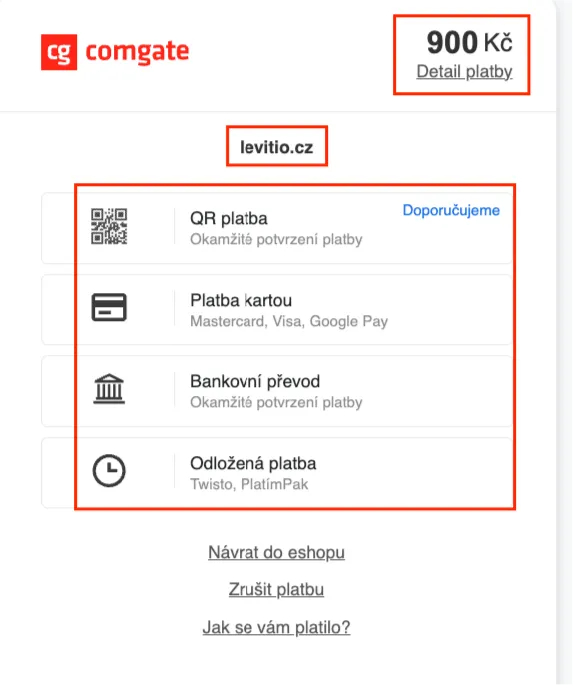
At the payment gateway, parents choose any payment method:
- card payment (Mastercard / Visa),
- Google Pay,
- Apple Pay,
- QR payment,
- bank transfer,
- deferred payment (e.g. Twisto, PlatímPak),
- other methods listed in the payment gateway.
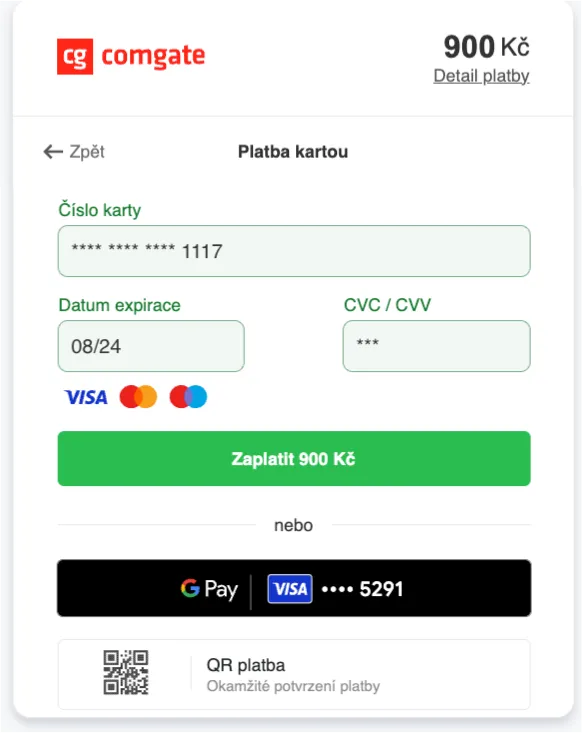
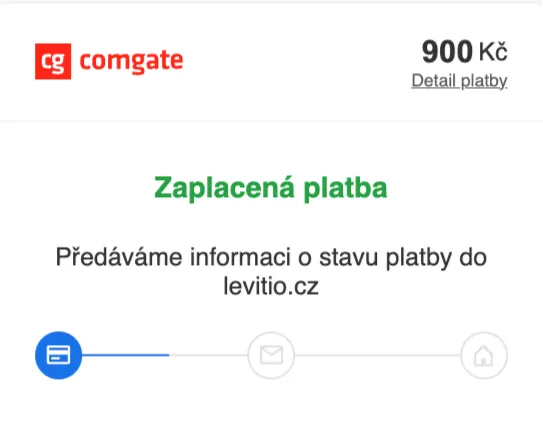
After payment, Levitio redirects parents back to Levitio, where they see their payment status (paid) in the portal and can download payment confirmation (which includes the payer information entered earlier). They also see donations they provided to the unit here.
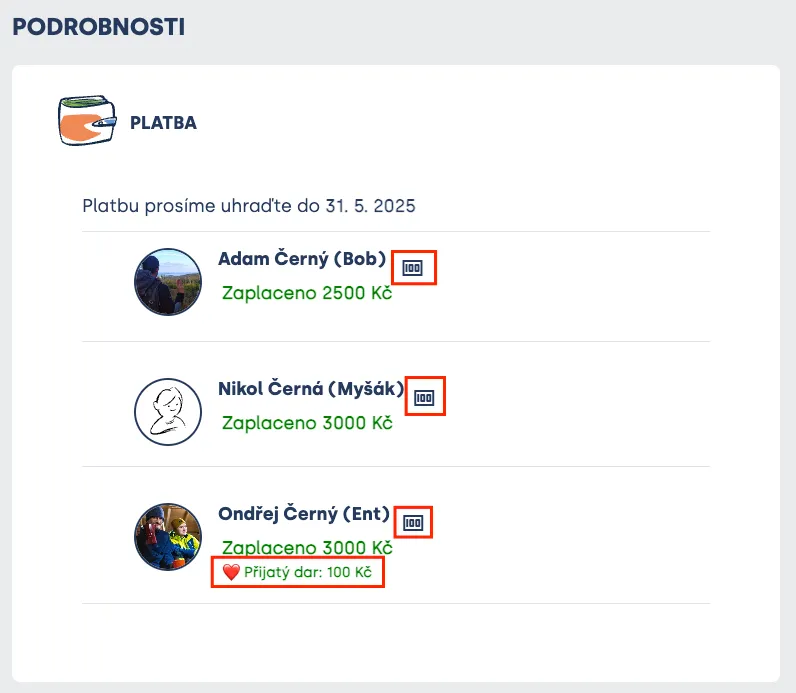
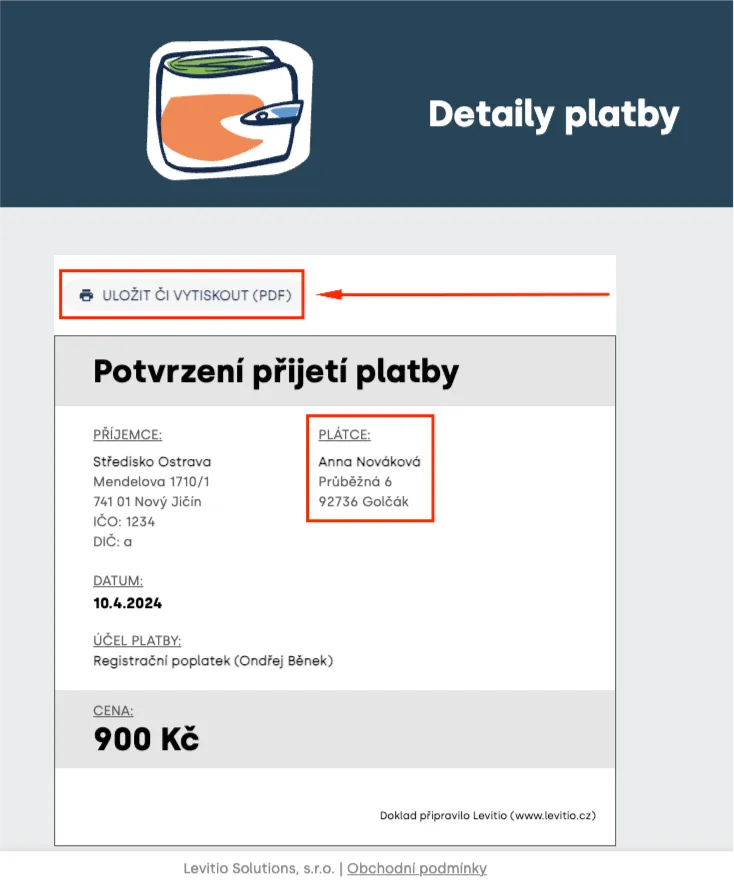
After clicking the “Payment confirmation” icon, the confirmation is displayed, which can also be saved as PDF or printed.
The leader also immediately sees the updated payment status in Levitio after the parent pays (paid + time). 🔗 More information: Levitio Pay: payments
B) Event payment (e.g. for a trip, camp)
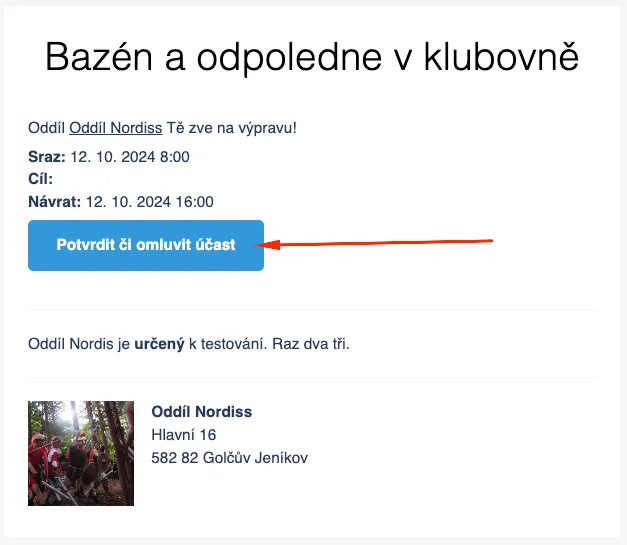
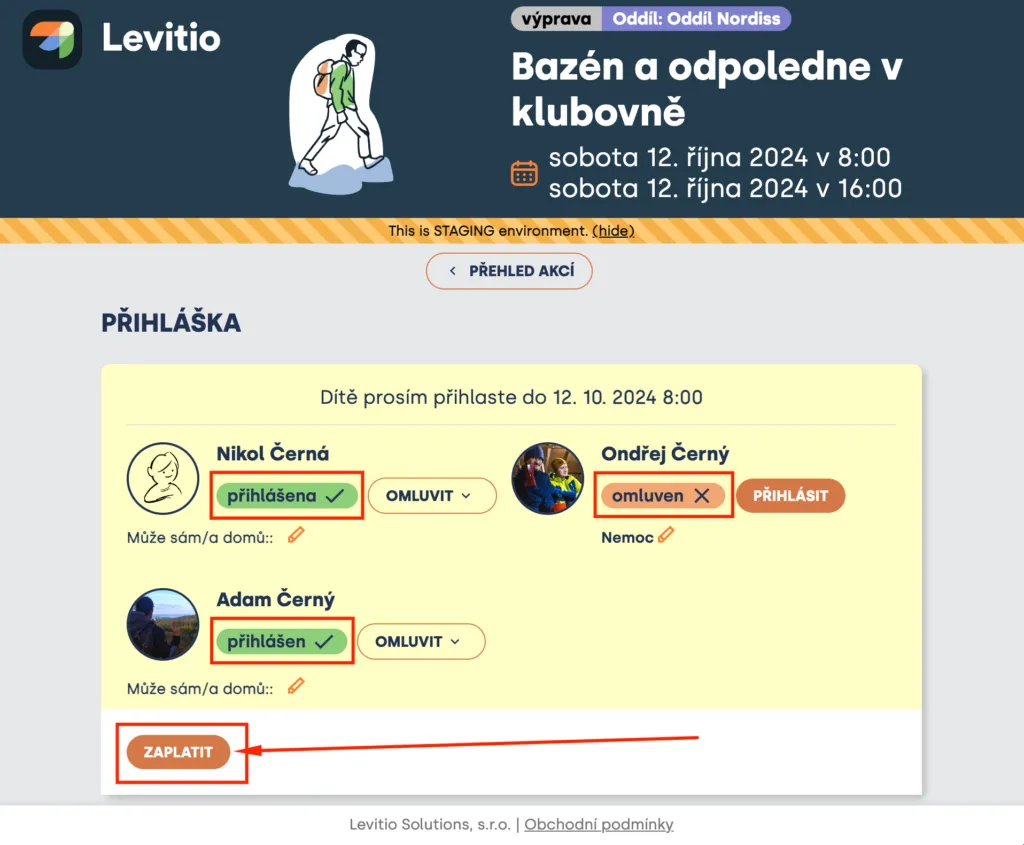
Event payment (typically meeting / trip / camp) works very similarly, with the difference that the member must first be signed up for the event for payment to be activated (if the unit has this set up).
🔗 More information about setting up event payments (for leaders): Event settings
Related articles
For parents
Levitio for parents
Parent and member portal: events, payments, noticeboard, and children's details in one place. You enter the portal with a personal link, without registration or a password.
Getting started
Getting started
Levitio is used by organizations, leaders, members, and parents. This guide walks you through creating an organization and the first steps.
Payments
Levitio Pay: payments
Levitio Pay helps units and clubs collect payments from parents and members. The bank account is set in the specific unit.
Payments
Payments FAQ
Levitio always shows you the fee transparently in advance. Donations use the same 5% / 3% rate as other Levitio Pay payments.
Payments
Donation campaigns / Crowdfunding
Levitio lets you collect donations and thereby increase the unit's funds. Donations use the same 3–5% Levitio Pay fee.