Help overview/Events
Google Calendar sync
You set up the Google Calendar connection in a specific unit / club. Synchronization may not appear immediately.
If you already have a shared Google Calendar set up and it works well for you, don’t worry. You can easily connect Google Calendar with Levitio and have an overview of all planned events in Google Calendar as well.
This feature is set at the unit / club level.
Proceed as follows:
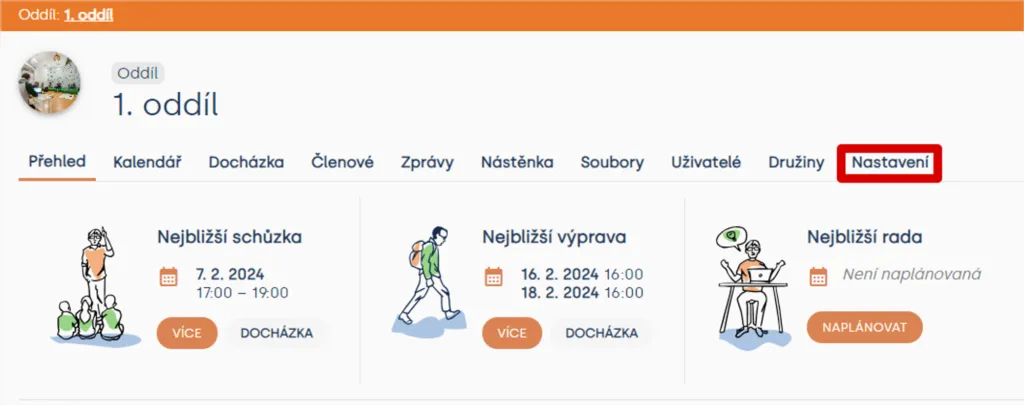
In the Unit section, click the Settings tab.
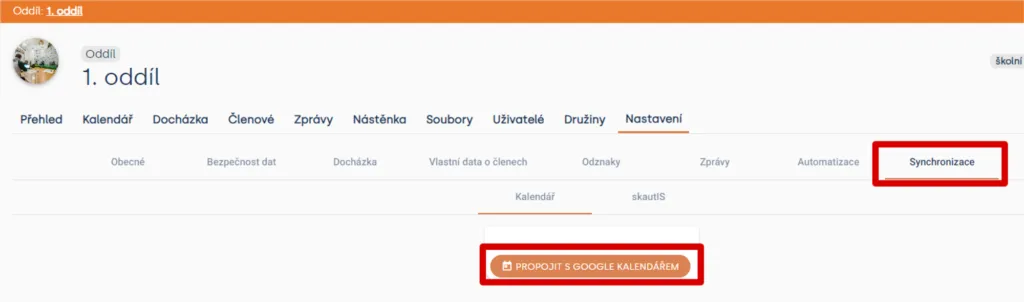
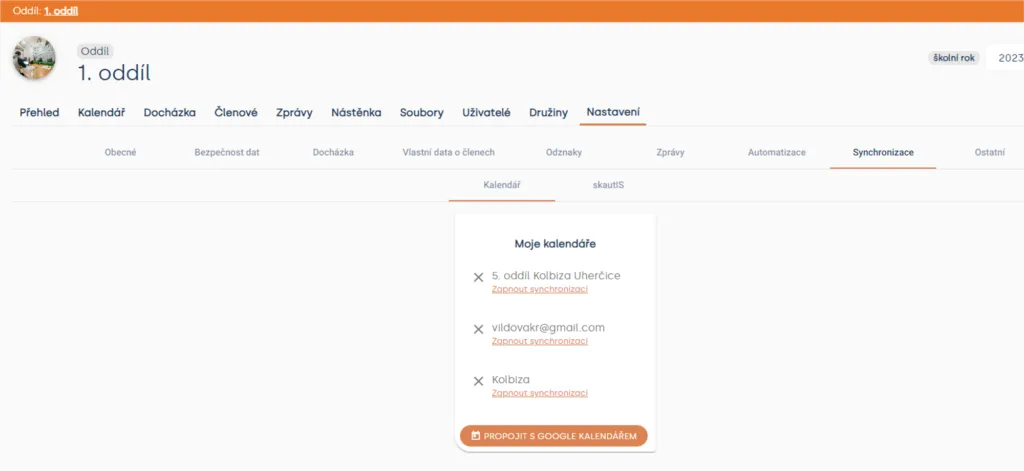
In the Settings tab, go to the Synchronization section. A window with the “Connect to Google Calendar” button will appear.
After clicking “Connect to Google Calendar”, a new window will appear where you log in to your Google account. Grant Levitio permission to access the Google Calendar linked to your account.
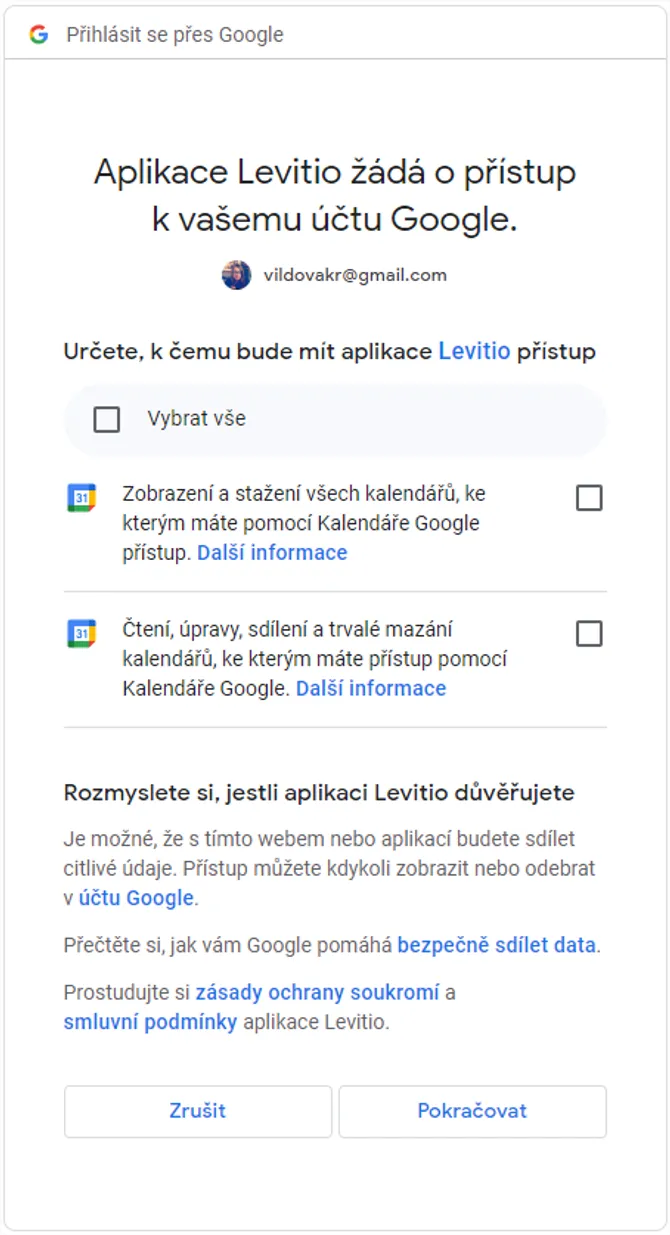
Confirm the connection by clicking the “Continue” button. Complete the connection by selecting a calendar and clicking Enable synchronization. In Levitio, you will see which calendars your Levitio account is connected to. You can disconnect at any time.
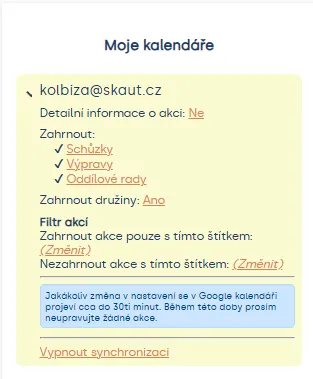
After synchronization, you can choose specific items you want to share with the calendar (meetings, trips, councils). If you use the Tags feature, you will appreciate the option to choose which tags you want to display and which not (tags can be used to separate public events, subsidized events, etc.). Synchronization may not appear immediately; the update can take a while.
Related articles
Events
Creating events
Before you start creating events, it's good to clarify the differences between event types.
Events
Event settings
For each event you can choose one of three statuses: Invisible, Draft, or Public.
Events
Inviting members to an event
After creating an event, check who is invited and send the invitation from the event detail. The parent or member receives a link where they can confirm attendance or excuse the child.
Events
Event program
For an event you can prepare a timed program in Levitio and split it into individual activities. You can save repeated activities as templates.
Events
Hranostaj & Levitio
Find a game in the Hranostaj database and drag it straight into your meeting, trip, or camp program. No copy pasting or jumping between apps.