Help overview/Events
Creating events
Before you start creating events, it's good to clarify the differences between event types.
Event types
Before you start creating events, it’s good to clarify the differences between event types:
The main difference is the welcome message in the parent portal:
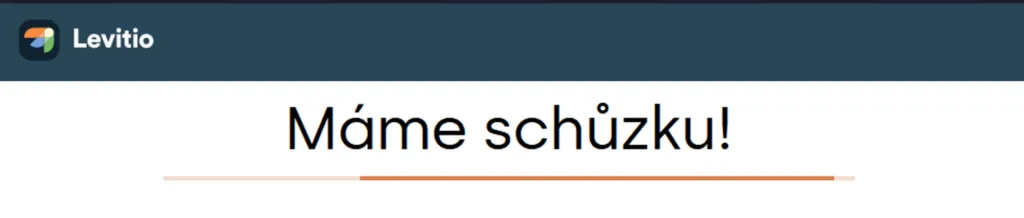
Welcome message in the parent portal – meeting
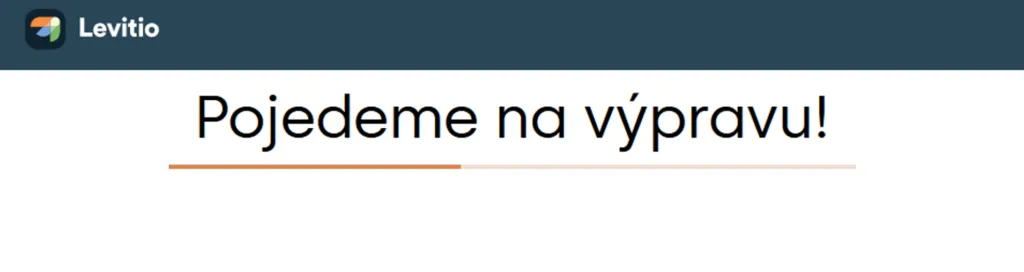
Welcome message in the parent portal – trip
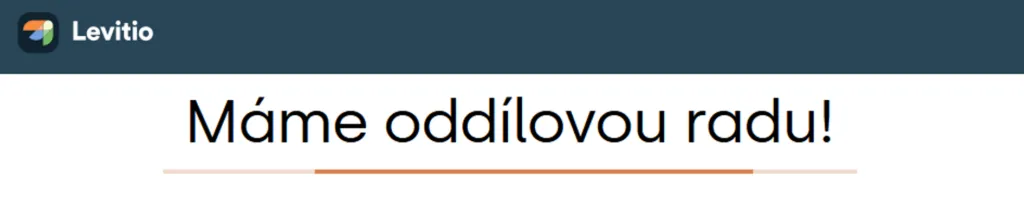
Welcome message in the parent portal – unit council
Meetings and trips
Main differences:
- Meetings can have recurrence set; trips are set individually
- Naming conventions
- Trips allow creating multi-day events and creating an event budget
Heads up! You won’t find sending feedback to parents for meetings. Automated message sending also doesn’t work for meetings.
Practical tip Use meetings only for patrol gatherings (shorter duration). When you create meetings directly under patrols, everything will be clearer. And you won’t have to deal with confused parents.
Meeting series
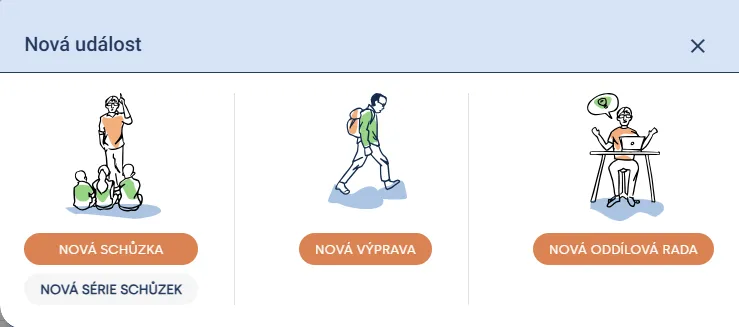
Use this option if you want to create multiple meetings at once that repeat on the same day and at the same time. Using the New event button or right-clicking on the relevant day in the calendar, you can create a New meeting series.
Set when the meeting should start and end. Then set the recurrence frequency (daily, weekly, monthly, etc.).

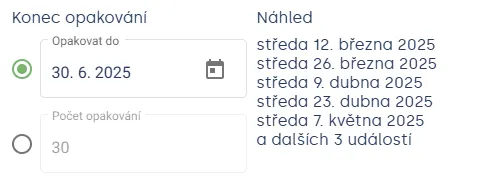
Set the end of recurrence and Levitio will list the dates and number of following events.
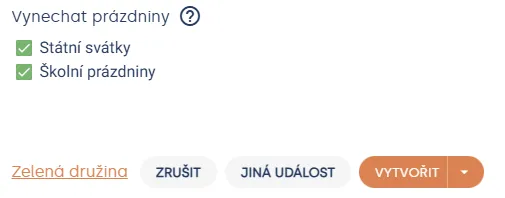
In the last step, you can check skipping holidays and public holidays and choose a patrol or the entire unit. Complete setup with the Create button.
Unit councils
Unit councils are mainly intended for leaders. The only difference is that you won’t find a program for them.
Practical tip Make sure you set the unit council to invisible; otherwise unit members or parents will see it.
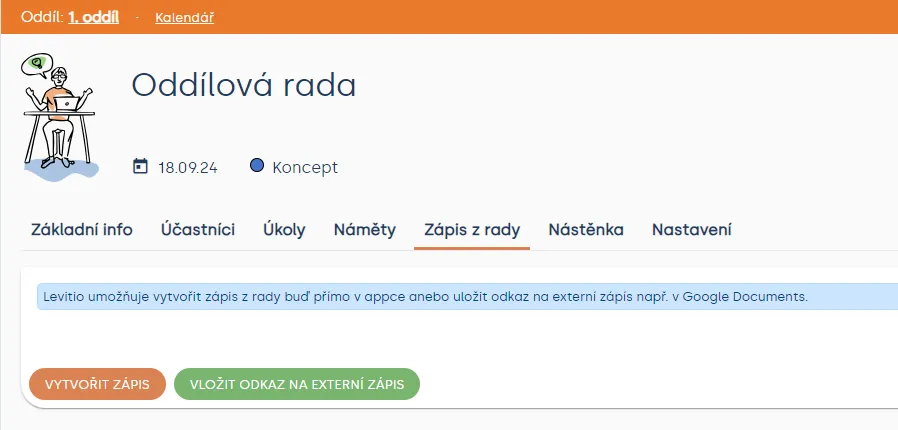
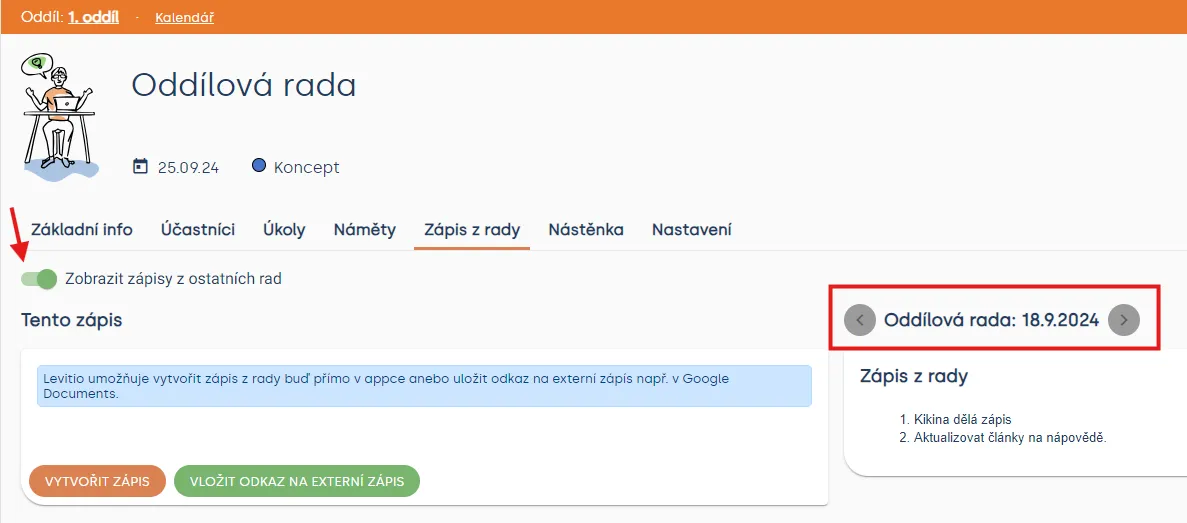
Levitio gives you two options for saving council minutes. You can create minutes directly in Levitio or attach a link to external storage and always have minutes at hand.
At the next council, Levitio offers the option to display minutes from previous councils. Simply activate the option with the slider on the left side.
Creating a new event
You can create an event by dragging or on a specific day. Both functions are very similar.
Creating an event by dragging
Create an event by clicking “+ New event” in the section: Unit > Calendar The event selection will open.
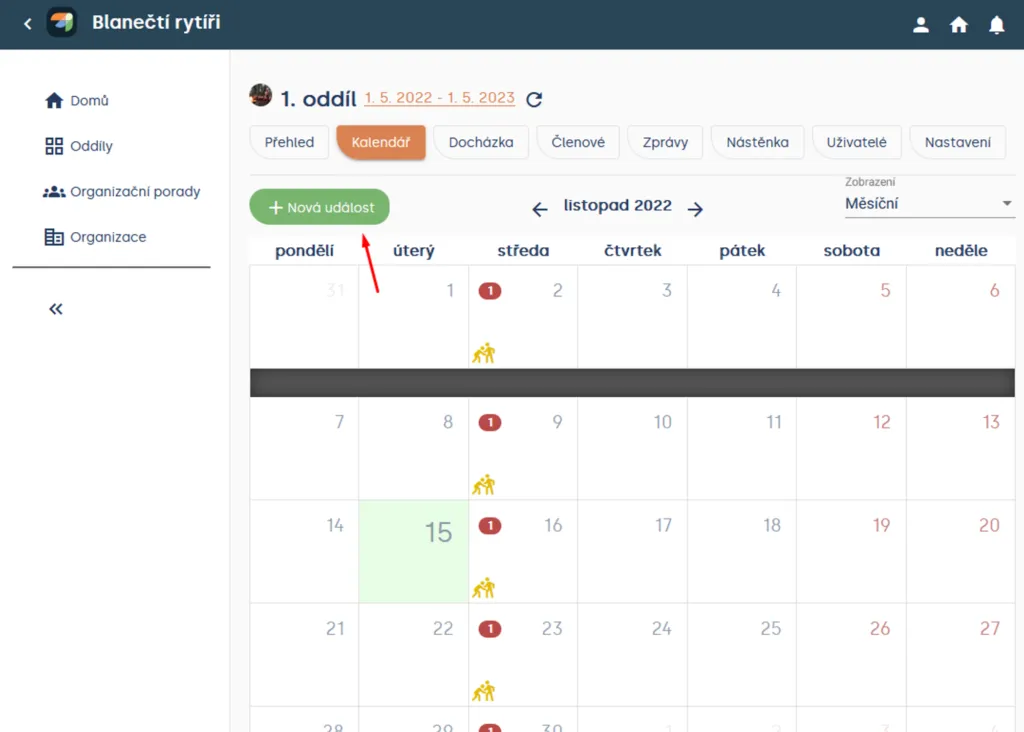
Section: Unit > Calendar
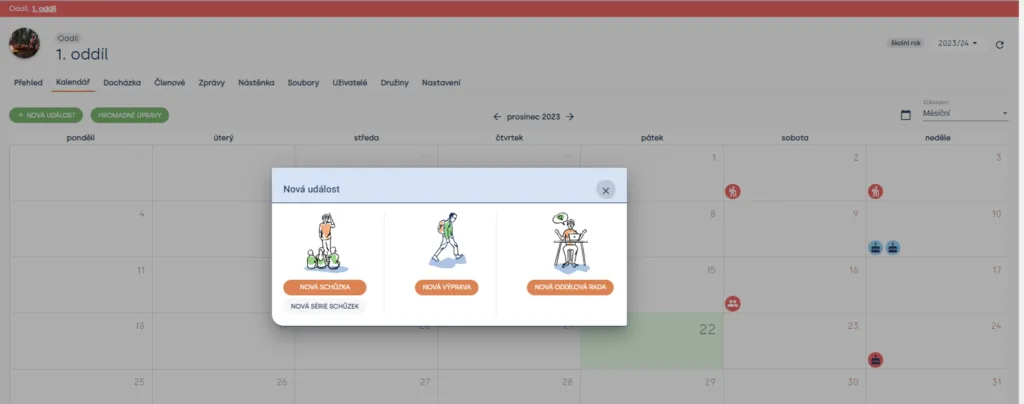
Section: Unit > Calendar > + New event
After opening the event selection, simply enter the event time (from when to when the event should last). You can also change the number of days the event should last.

If you click the orange-highlighted unit name, you change for whom (unit or specific patrol) the event should be created.
Complete the event by clicking the Create button.
Creating an event on a specific day
If you hover over a specific day, a plus “➕” appears; when you click it, you can select the type of event you want to create.
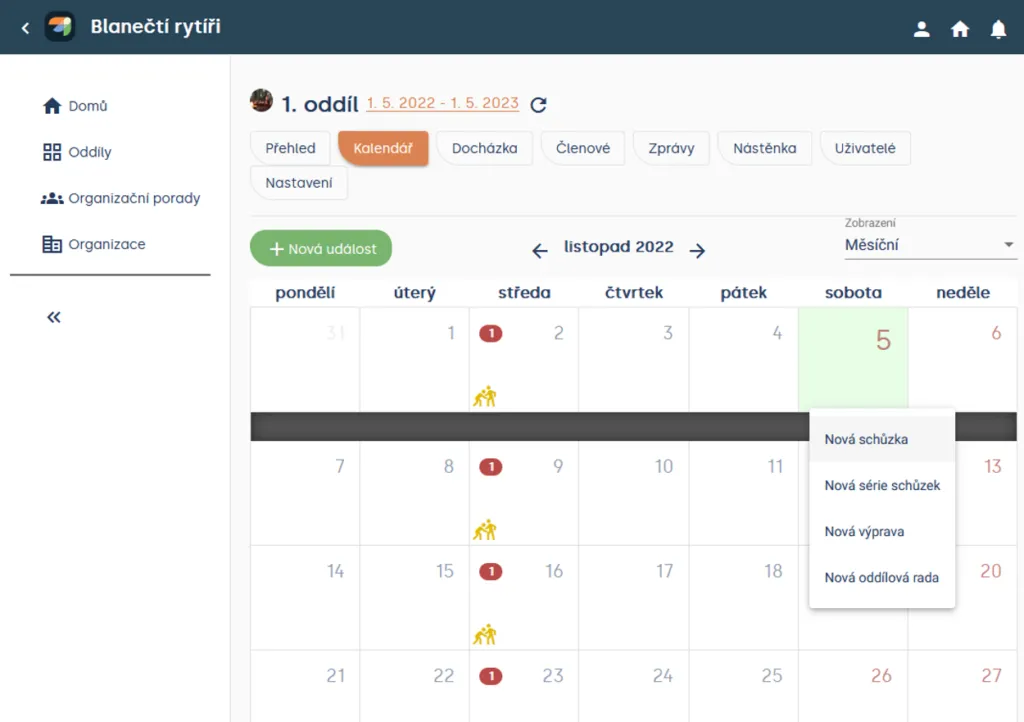
Section: Unit > Calendar
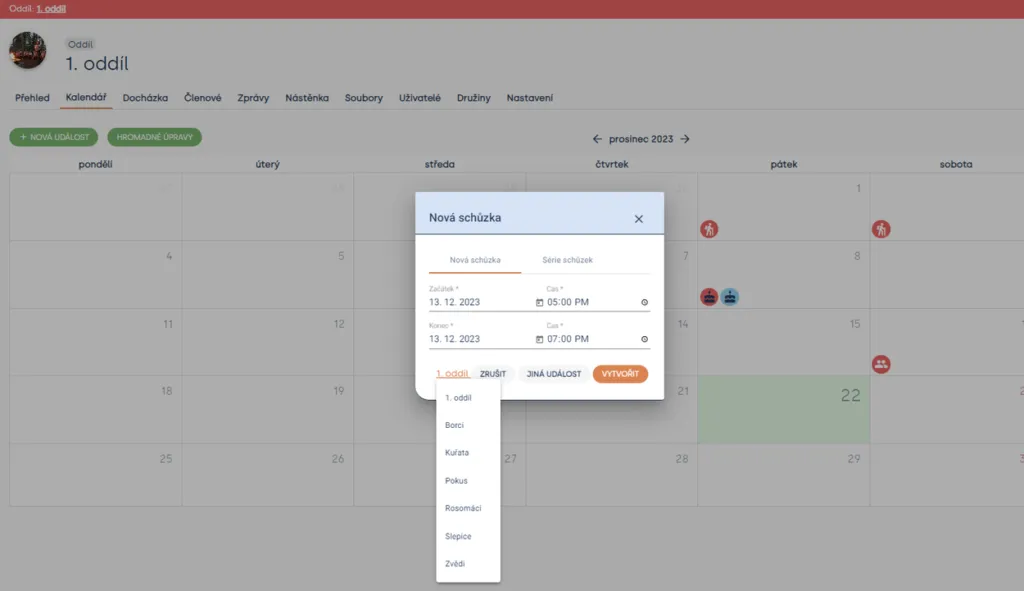
Section: Unit > Calendar > + > New meeting
Then simply select the event duration and set who the event is for, whether for the unit or you can select a specific patrol.
Practical tip If you’re creating meetings for the entire year ahead, you can use bulk edits and adjust details about meeting point, location, packing list, etc. all at once. Be careful with bulk edits – changes are irreversible.
Duplicating an event
You can duplicate any event that was previously created. Go to the Settings tab of a previously created event. Then in the Other section you have two options: duplicate or delete. To duplicate an event, click the option, select the target unit (if the event was only for a patrol, you can this time select the entire unit or another patrol. Then select the event start date and its status and confirm settings with the Next button.
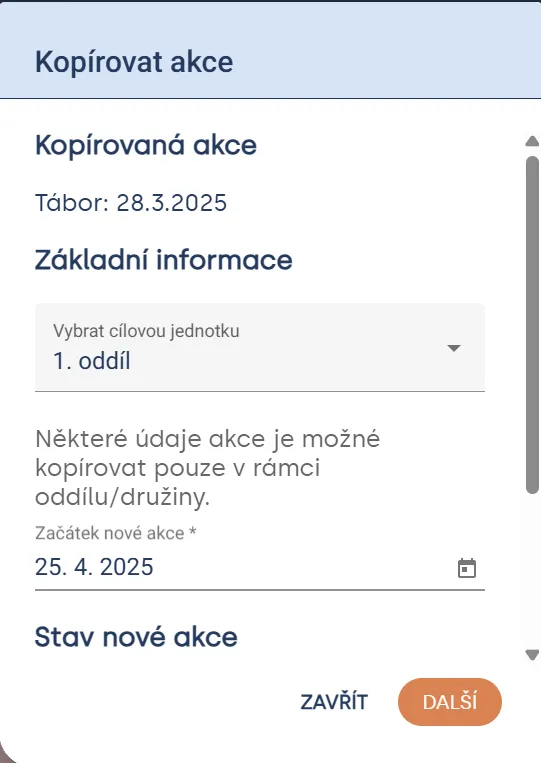
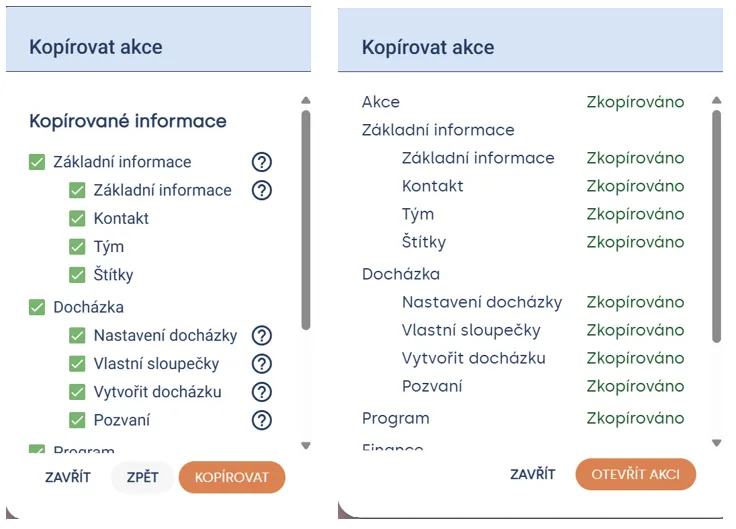
In the next step, remove sections you don’t want to copy (all will be selected automatically. Confirm duplication with the Copy button. In the last window, just check that all details were copied correctly. Done!
Bulk edits
Bulk edits are a great helper at the start of the scout year when creating new meetings. You can find the Bulk edits button in the Calendar tab in the upper left corner.
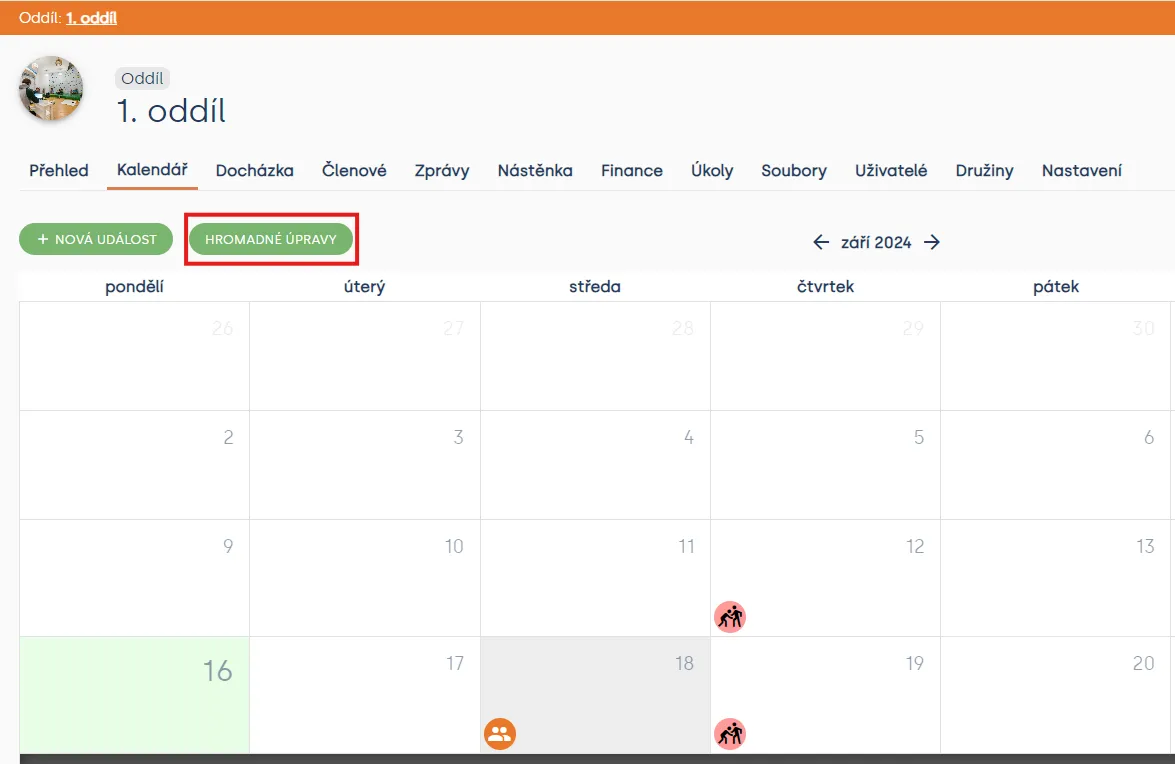
After selecting Bulk edits, a new table opens and using filters you choose individual patrols and events whose events you want to display. You can then select individual events from the list or choose “Select all”.
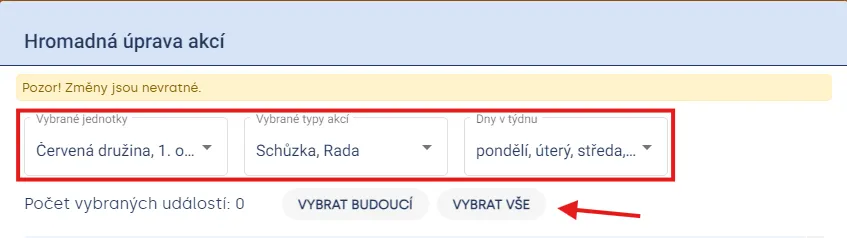
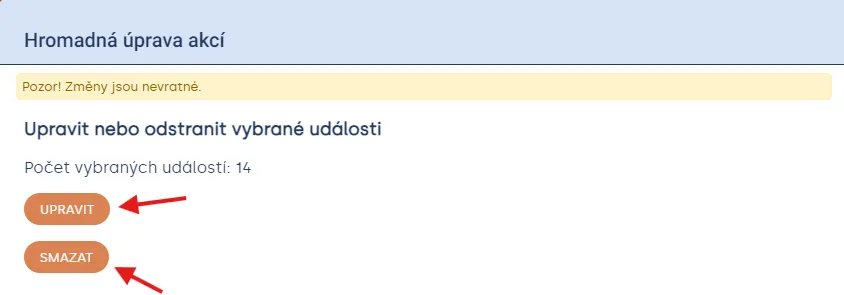
Once you have all events designated for change selected, click the “Next” button in the bottom right corner. In the next step, Levitio offers the option to EDIT or DELETE selected events.
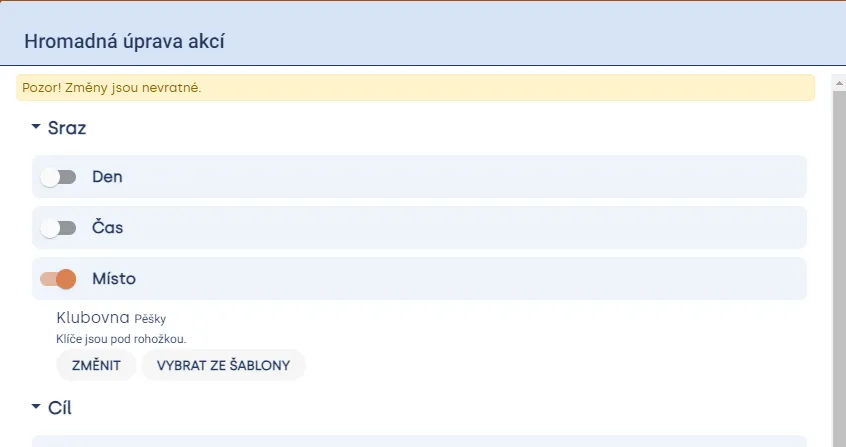
After selecting EDIT, you see a list of details you can edit. These are Start, Destination, Return, and Information. Edit the information you need and click the “Next” button in the bottom right corner.
In the next step, Levitio summarizes the changes you are about to make. Check everything and continue with the “Next” button. In the last step, confirm changes by typing the word “EDIT” into the field prepared at the bottom of the window. Confirm changes by pressing the “Execute” button.

For bulk event deletion, choose DELETE in the previous step, check selected events, and in the last step type the word “DELETE” into the prepared field. Confirm with the “Execute” button.

Heads up! The words EDIT and DELETE must be exactly in this form (capital letters, no spaces at the beginning and end of the text); without this, the “Execute” button won’t be active.
Related articles
Events
Event settings
For each event you can choose one of three statuses: Invisible, Draft, or Public.
Events
Google Calendar sync
You set up the Google Calendar connection in a specific unit / club. Synchronization may not appear immediately.
Events
Inviting members to an event
After creating an event, check who is invited and send the invitation from the event detail. The parent or member receives a link where they can confirm attendance or excuse the child.
Events
Event program
For an event you can prepare a timed program in Levitio and split it into individual activities. You can save repeated activities as templates.
Events
Hranostaj & Levitio
Find a game in the Hranostaj database and drag it straight into your meeting, trip, or camp program. No copy pasting or jumping between apps.