Help overview/Events
Event program
For an event you can prepare a timed program in Levitio and split it into individual activities. You can save repeated activities as templates.
For an event you can prepare a timed program in Levitio and split it into individual activities. For each activity you can, depending on the available fields, enter for example time, duration, environment, notes, and needed supplies.
You can save repeated activities as templates.
You can access program creation by clicking directly in the event. Switch the “Edit” button to enable program editing.
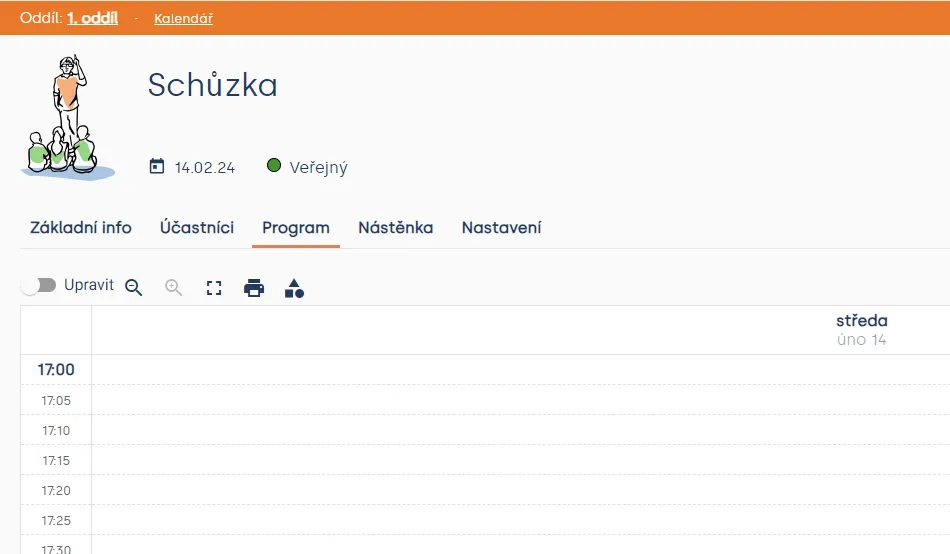
Clicking on the table opens the option to create an activity. Choose the name of your activity.

Next, you can specify how long the activity will last and what time it should start.

From the list, you can select the environment where the program can take place.

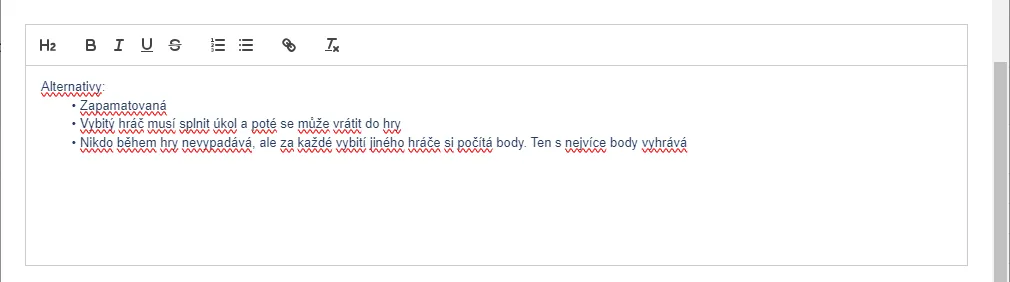
You also have the option to write a note for the program, for example a description of the activity or game rules.
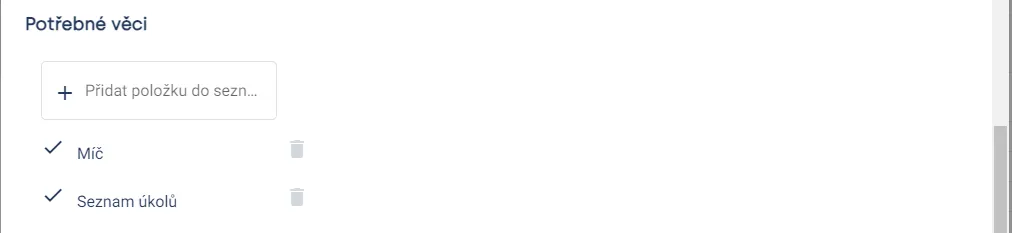
From the list of items, you can select the necessary supplies. If you can’t find them in the list, don’t worry – you can add anything to the list. Complete program creation by clicking the “Create” button.
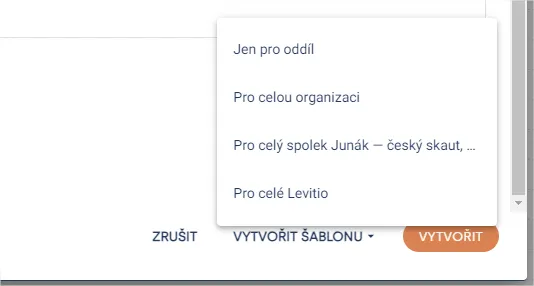
From the created program, you can create a template so you won’t have to fill in all the fields again next time.
Tip

Clicking the icon shows you a list of all supplies from prepared programs. This way you can easily check whether you have everything ready for the meeting.
Hranostaj
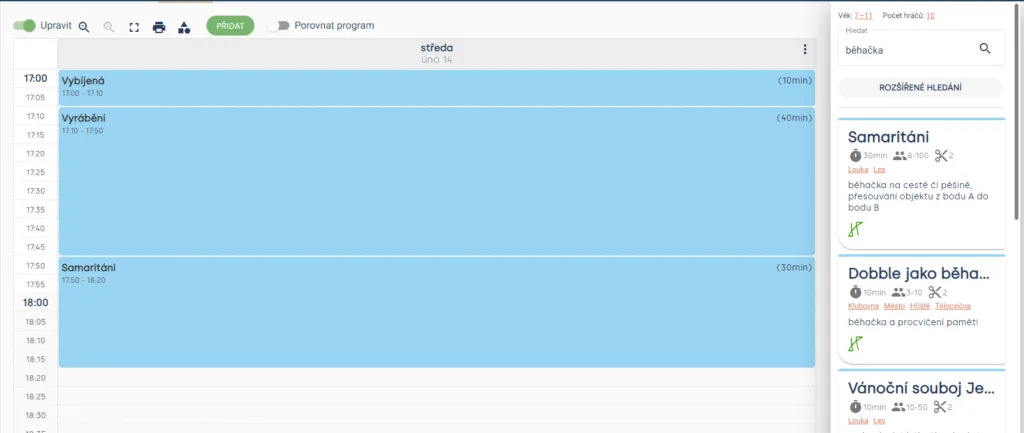
A great advantage is Levitio’s integration with Hranostaj – a popular source of games for all age groups of children. In the right sidebar, you can set search criteria (age category, number of players) and search for program inspiration directly from Hranostaj by keyword. 🔗 More: Hranostaj & Levitio
If you select a game from the search results, simply drag it into the table at the specific time. The game will then appear in the program and you can edit its details (duration, environment, note, name).
Related articles
Events
Creating events
Before you start creating events, it's good to clarify the differences between event types.
Events
Event settings
For each event you can choose one of three statuses: Invisible, Draft, or Public.
Events
Google Calendar sync
You set up the Google Calendar connection in a specific unit / club. Synchronization may not appear immediately.
Events
Inviting members to an event
After creating an event, check who is invited and send the invitation from the event detail. The parent or member receives a link where they can confirm attendance or excuse the child.
Events
Hranostaj & Levitio
Find a game in the Hranostaj database and drag it straight into your meeting, trip, or camp program. No copy pasting or jumping between apps.