Help overview/Communication
Noticeboard
An internal noticeboard of a specific unit, event, or patrol. For community noticeboards of all Levitio users, see the Levitio noticeboard article.
This article describes the internal noticeboard of a specific unit / event / patrol. For shared community noticeboards of all Levitio users, see Levitio noticeboard.
The noticeboard in Levitio can be used for internal communication, voting, sharing images, or externally, for example when you need parents of children to vote.
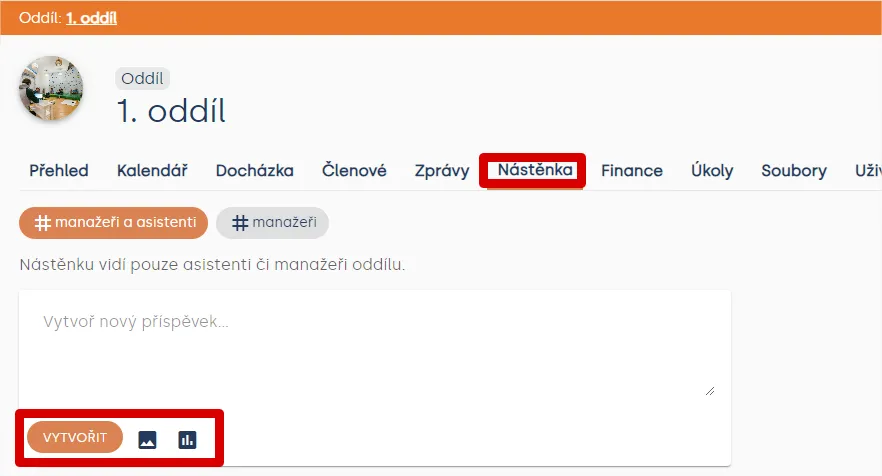
You can find the unit noticeboard among the main tabs (Unit > Noticeboard).
Types of posts
- Text
- Image
- Poll
Text on the noticeboard is added by typing the desired text into the pre-filled “Create new post” frame. After typing the text, simply press the “Create” button and the post will immediately appear on the noticeboard.
Image is added by pressing the image icon next to the “Create” button, selecting the image you want to insert from your computer. You can then write text for the image and as a final step publish the image.
Polls
Polls can be created for managers and assistants in the unit, as well as for parents of children. Simply press the poll icon. For a new poll, choose the poll name and prepare options for voters. Complete the poll by pressing the “Create” button.
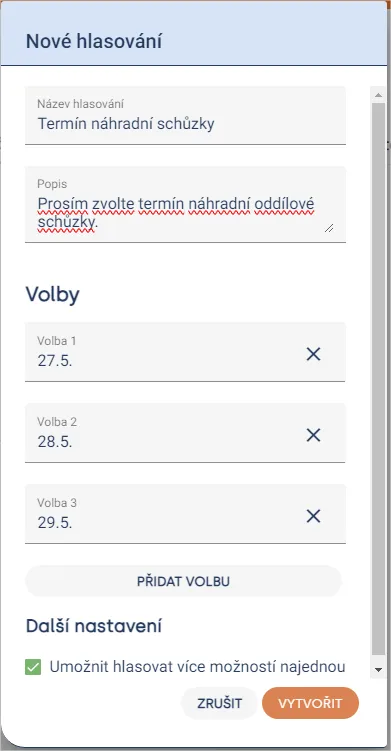
Heads up! If you need voters to select multiple options, don’t forget to check “Allow voting for multiple options at once”.
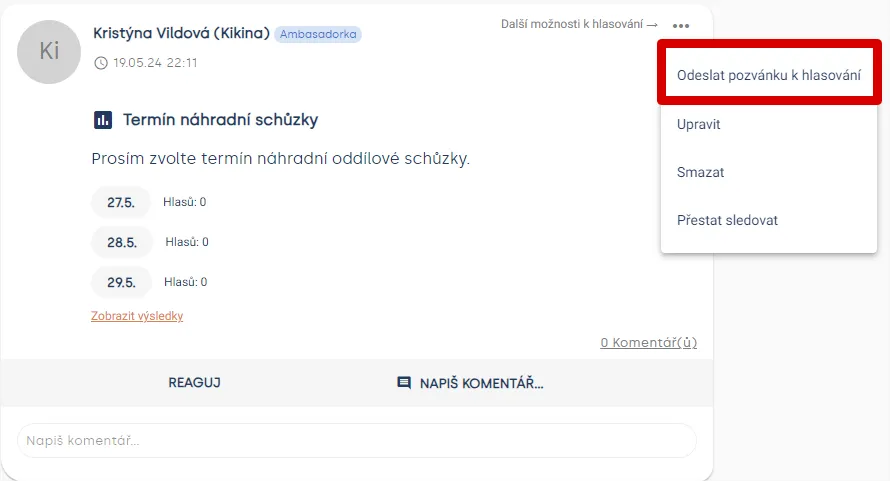
As a final step, simply click the three dots in the upper right corner of the post and select “Send poll invitation”. From the list of unit members and parents, select those you want to send the poll to. Voters will then receive an email where they can choose their preferred options.
Practical tip Unit managers/assistants can then react to posts using emoji or comments.
Noticeboards can be used at different levels. We described the unit level above. You can also use a noticeboard for each meeting, trip, council, or patrol.
Related articles
Communication
Sending messages to members and parents
You can use Messages in a specific unit / club and also at the whole organization level.
Communication
Levitio noticeboard
Shared community noticeboards for leaders from different organizations. You will find them on the Levitio home page.
Communication
Trip feedback
After a supported event has taken place, you can ask parents or participants for feedback from the event detail.
Getting started
Getting started
Levitio is used by organizations, leaders, members, and parents. This guide walks you through creating an organization and the first steps.
For parents
Levitio for parents
Parent and member portal: events, payments, noticeboard, and children's details in one place. You enter the portal with a personal link, without registration or a password.