Help overview/Smart table
Custom columns
You can add custom columns to Smart table for data you need to record beyond the basic member profile.
You can add custom columns to Smart table for data you need to record beyond the basic member profile.
You create a new column in a specific unit / club. For each column you set a name, data type, and depending on the options also who can view or edit the data.
Create a new column by clicking “+ Add column”. Simply fill in the column name and set what data you want to store in that column, and you will create a new column in Smart table.
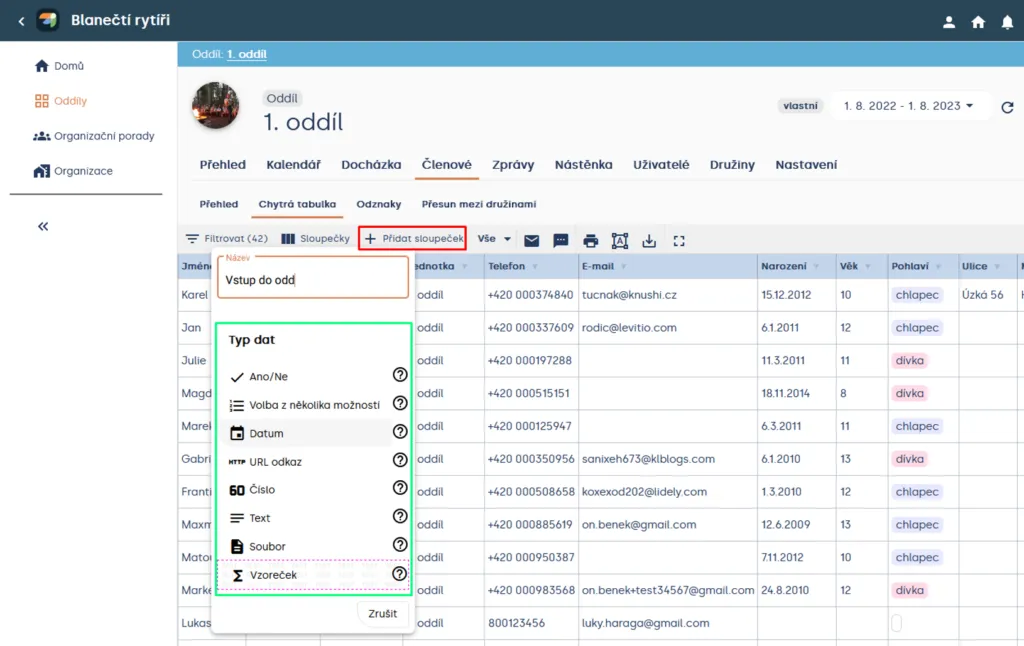
Unit > Members > Smart table
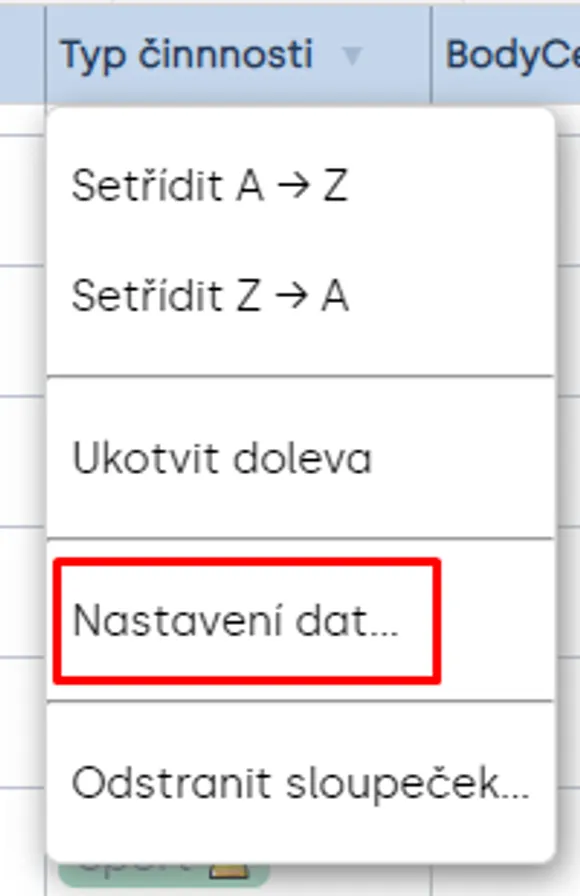
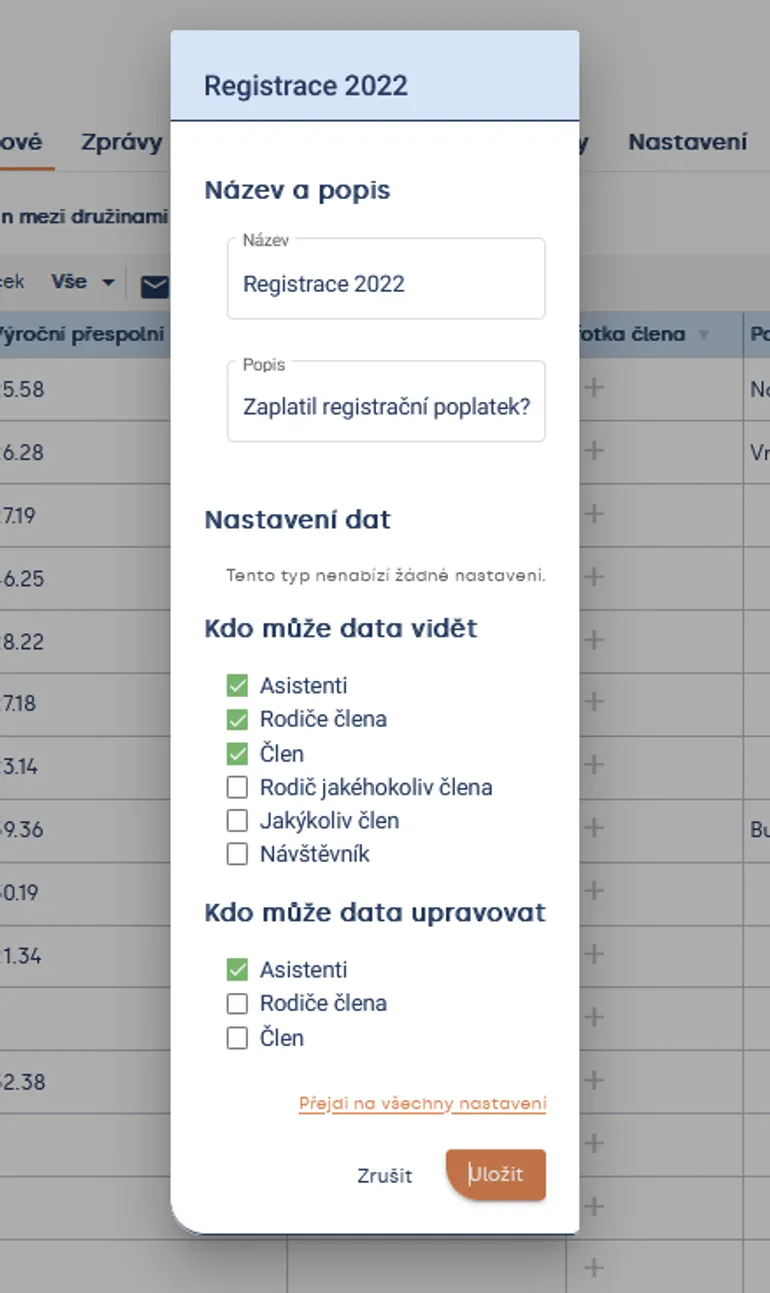
When you click on a column name, you will see the option to configure the column’s data. You can rename any column at any time and edit the column description.
You can also change data security for each column (who can view and edit data). Simply check/uncheck the relevant group. If you need to configure additional settings, click “Go to all settings”.
Column type options:
| Column type | Data type | Data settings | Example uses |
|---|---|---|---|
| Yes/No | ✅ (yes) | ||
| ❌ (no) | This column type has no data settings. | ‘Brought application form’, ‘Paid registration’, and more | |
| Choice from several options | Your preset options | Adding and removing options. | ‘T-shirt size’, ‘role in unit’, and more |
| Date | Any date | This column type has no data settings. | ‘Became a rover’, ‘Registration validity’, and more |
| URL link | link insertion | This column type has no data settings. | ‘Child profile link’, ‘Instagram’, and more |
| Number | numbers only | Setting the lowest and highest possible number that can be entered in the column. | ‘Snack contribution’, ‘Registration number’, and more |
| Text | text, characters, and numbers | Setting minimum and maximum text length. | ‘Notes about child’, ‘Sibling names’, and more |
| File | image | Settings for this column type cannot be changed after creation. | ‘Child photo’, ‘Application form’, and more |
| Formula | Formula | Editing the formula. | ‘Points’, ‘Remaining snack money’, and more |
File column type
You can add files to members in the smart table. When creating this column type, you must choose what you will store in this column. You can add any file or multiple different files.
Or when you choose storing images/multiple images, Levitio allows you to insert files with the extension (format) .png and .jpg (and similar formats – .jfif; .jpeg; .pjpeg; .pjp).
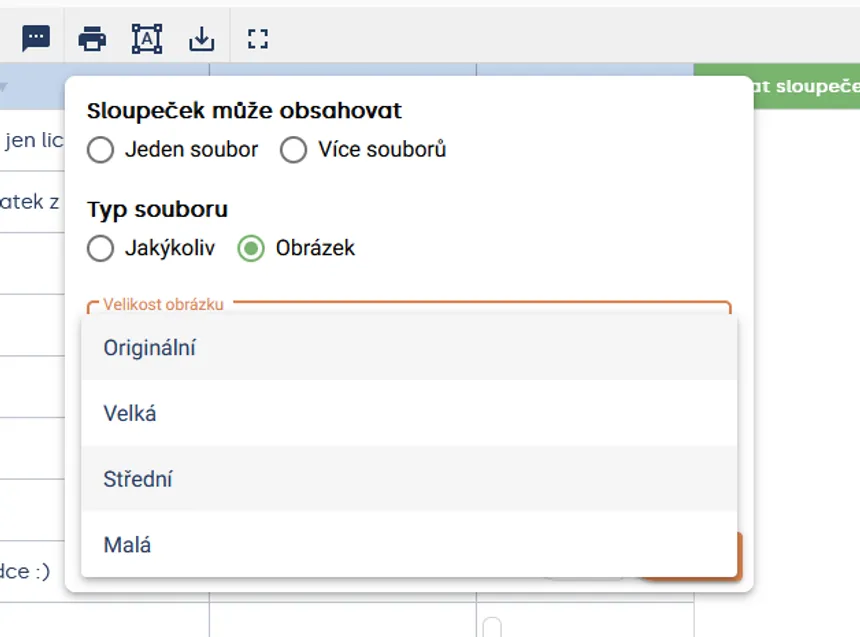
Levitio adjusts images according to the set size and reduces their size, see table.
| IMAGE SIZE | MAXIMUM RESOLUTION | NOTE |
|---|---|---|
| Original | Unlimited | Unmodified size of images/photos. |
| Large | up to 2048×2048 | Suitable for images intended for A4 printing. |
| Medium | up to 1024×1024 | Suitable for A4 images or photos so that text remains readable. |
| Small | up to 512×512 | Suitable for business card-sized images or photos so that text remains readable. |
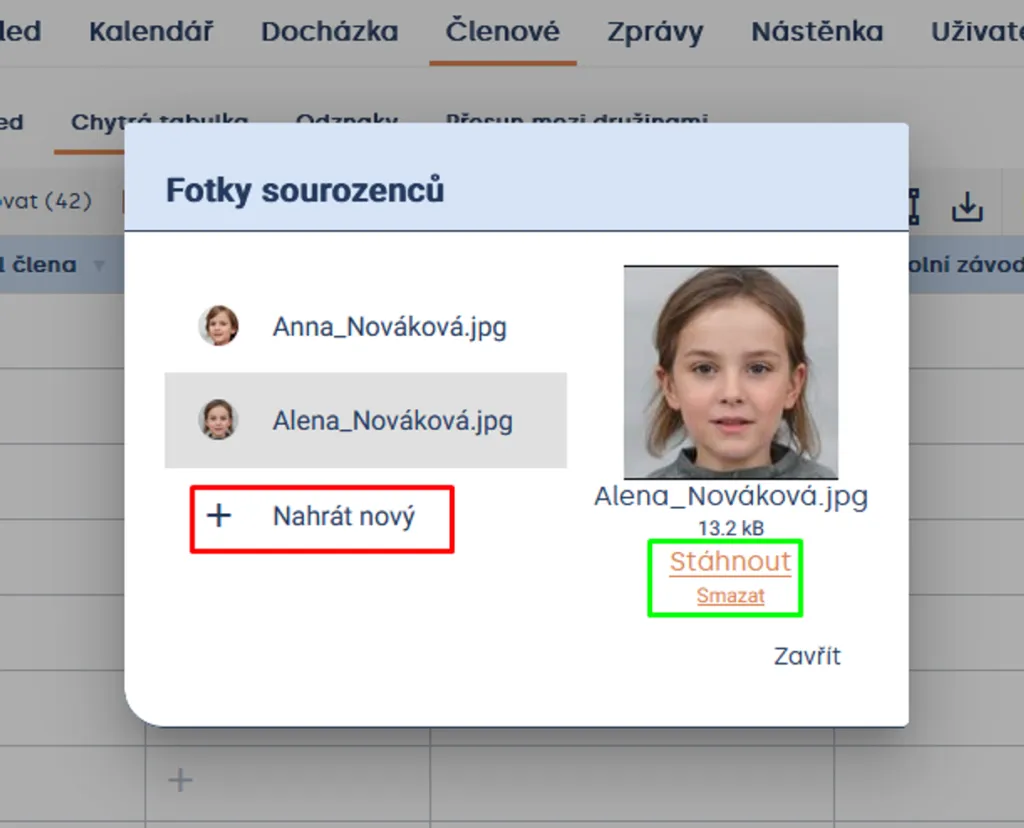
You can view images in Levitio at any time. You can download and delete all file types from Levitio.
Related articles
Smart table
Smart table
Smart table is a tool of a specific unit / club for working with member data.
Smart table
Bulk creation of pre-filled infection-free and health fitness forms
In Levitio you can easily generate required camp documents – even for all children at once, thanks to pre filling with dynamic fields.
Smart table
Bulk processing of camp leave requests with wage reimbursement in Levitio
In Levitio, you can easily generate the required documents for leave requests with wage reimbursement – even for all leaders at once , thanks to pre filling with dynamic fields.
Getting started
Getting started
Levitio is used by organizations, leaders, members, and parents. This guide walks you through creating an organization and the first steps.
For parents
Levitio for parents
Parent and member portal: events, payments, noticeboard, and children's details in one place. You enter the portal with a personal link, without registration or a password.